Keeping your Veluril library secure
Your Veluril library is protected by two things: your password, and a second key that's always on. You can change either one at any time from Settings. Switch between email codes and an authenticator app, get new backup codes, change your password, and sign out any browser you no longer use. We also email you whenever your password, second key or your backup codes are changed.
Your profile
Head to Settings and click "Profile":
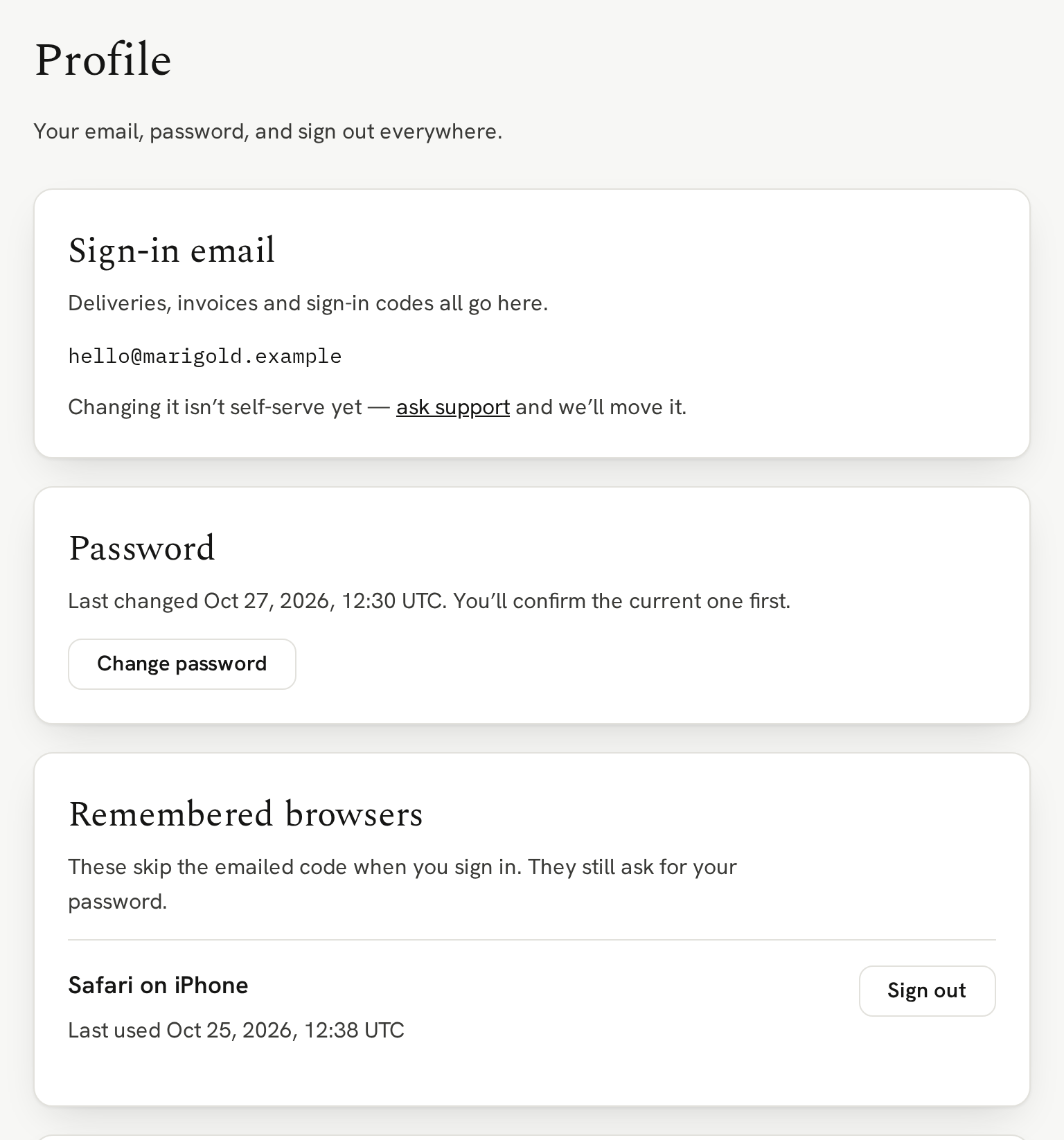
Sign-in email is not only the email you use to identify yourself, it's where delivery updates, invoices, and sign-in codes go. To change it, ask support and we'll move it for you.
Password shows when you last changed it. Click "Change password", enter your current password, then your new one.
Remembered browsers are the browsers you set to remember when you signed in. If you see one you no longer use, click "Sign out" beside it.
Two-step verification
Head to Settings and click "Two-step verification". Your second key is an important step in securing your library and how you prove it's you, even after entering your password:
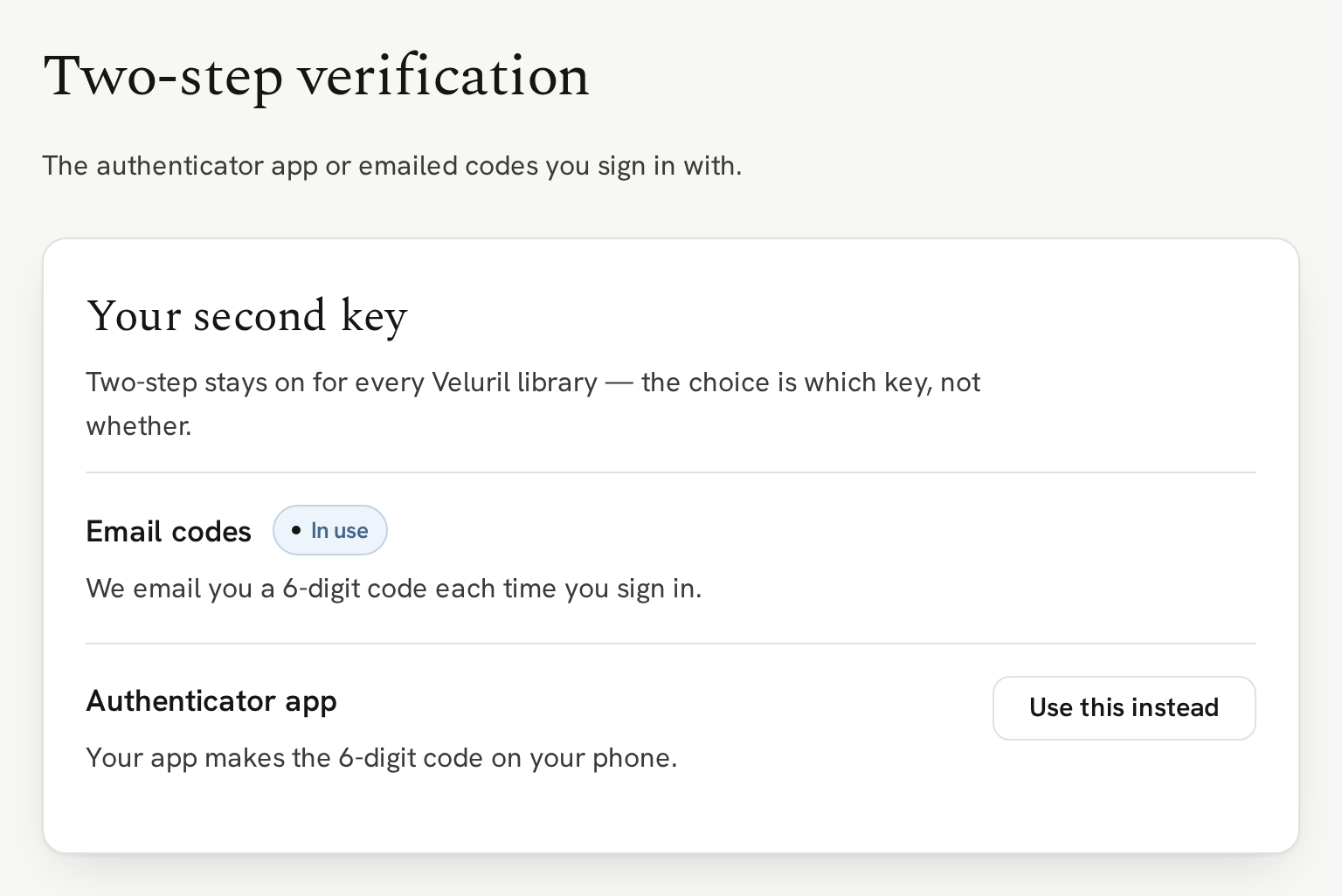
Email codes: we email you a 6-digit code each time you sign in.
Authenticator app: an app, such as 1Password, Google Authenticator or Authy, creates a 6-digit code that you enter when signing in.
Both methods, email and the auth app, generate the 6-digit code you use to complete signing in. Which one you choose is up to you and neither is 'better' than the other. The choice usually comes down to how you like to get the 6-digit code: by email, or by an auth app.
To switch how you get the code, click "Use this instead" on the one you want and enter your password. For an app, scan the QR code, type the 6-digit code it shows, and click "Verify and turn on". You'll then save your backup codes. Switching back to email codes removes the app, and its backup codes stop working.
Two-step is enabled for every Veluril library. You choose which method to use. This helps ensure your library is always protected by more than a password.
Backup codes
If you use an authenticator app but don't have access to it, you can use one of the ten backup codes to sign in. Each backup code can be used just once. The Two-step verification page shows how many you have left and when they were made. "Get new codes" creates a fresh set and replaces the old set.
If you need to use one when signing in, click "Lost your authenticator? Enter one of your backup codes instead."
We'll always let you know
Whenever your password changes, you switch how you get your 6-digit code, or you generate new backup codes, we email you at your sign-in email. If you didn't make the change, that email tells you what to do next.