Connecting your Square account
Connect Square to your Veluril library and a sale of a linked Square product delivers your content automatically. Your recipient gets their delivery email within moments of buying, without you touching anything.
You only need to do this once. Linking individual bundles to individual Square products comes afterward, and it is covered in Connecting Square Trigger products.
Connecting your account
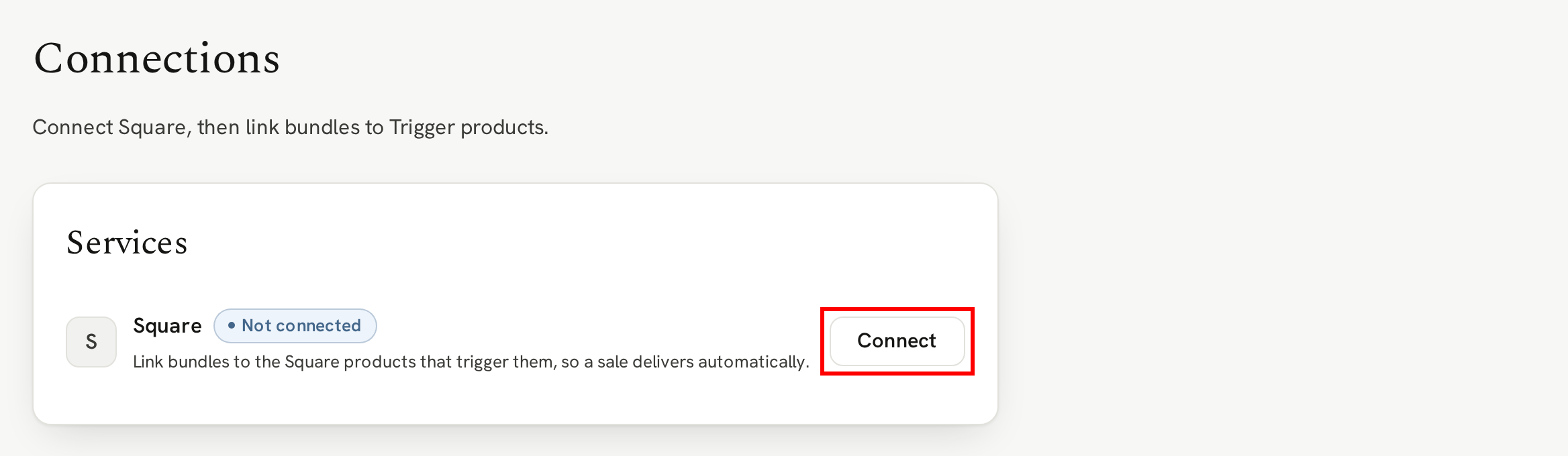
Head to your Connections page and click the "Connect" button on the Square row:
That takes you to Square’s own sign-in and authorization screen. Sign in to the Square account you sell from, and Square will show you exactly what Veluril is asking for:
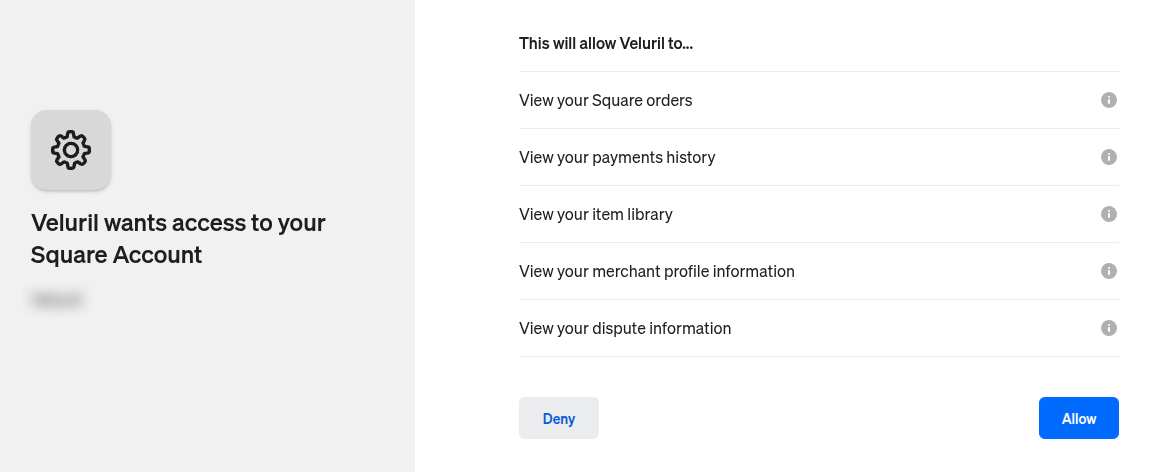
We ask for five permissions, and every one of them is read-only.
Veluril can read your orders, your payments, your catalog items, your business profile and your disputes — the five things it needs to know that a sale happened, which product was bought, and whether the sale was later refunded or disputed. Nothing we ask for can change anything in your Square account. We can’t refund a payment, edit a product, or see your Square customer list.
Click the "Allow" button on the Square page and you are sent straight back to your Veluril settings page, which shows a confirmation banner:
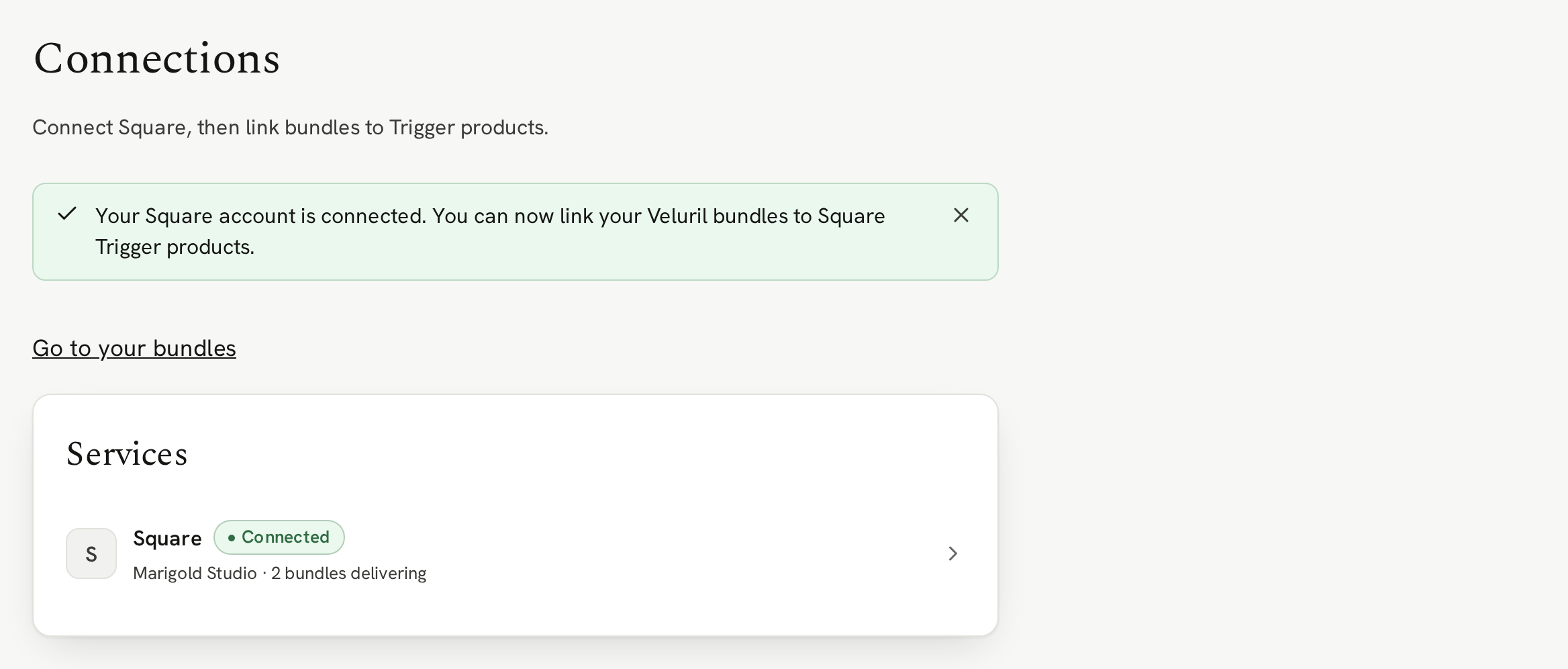
The row now shows as Connected, with your Square business name beside it. That’s it — the connection is live.
If you change your mind and click "Deny", nothing happens to your library. You come back to your settings page with a confirmation that "Connecting Square was canceled — nothing changed."
Square details
Click the Square row and you land on the connection details page. It has three parts:
The account
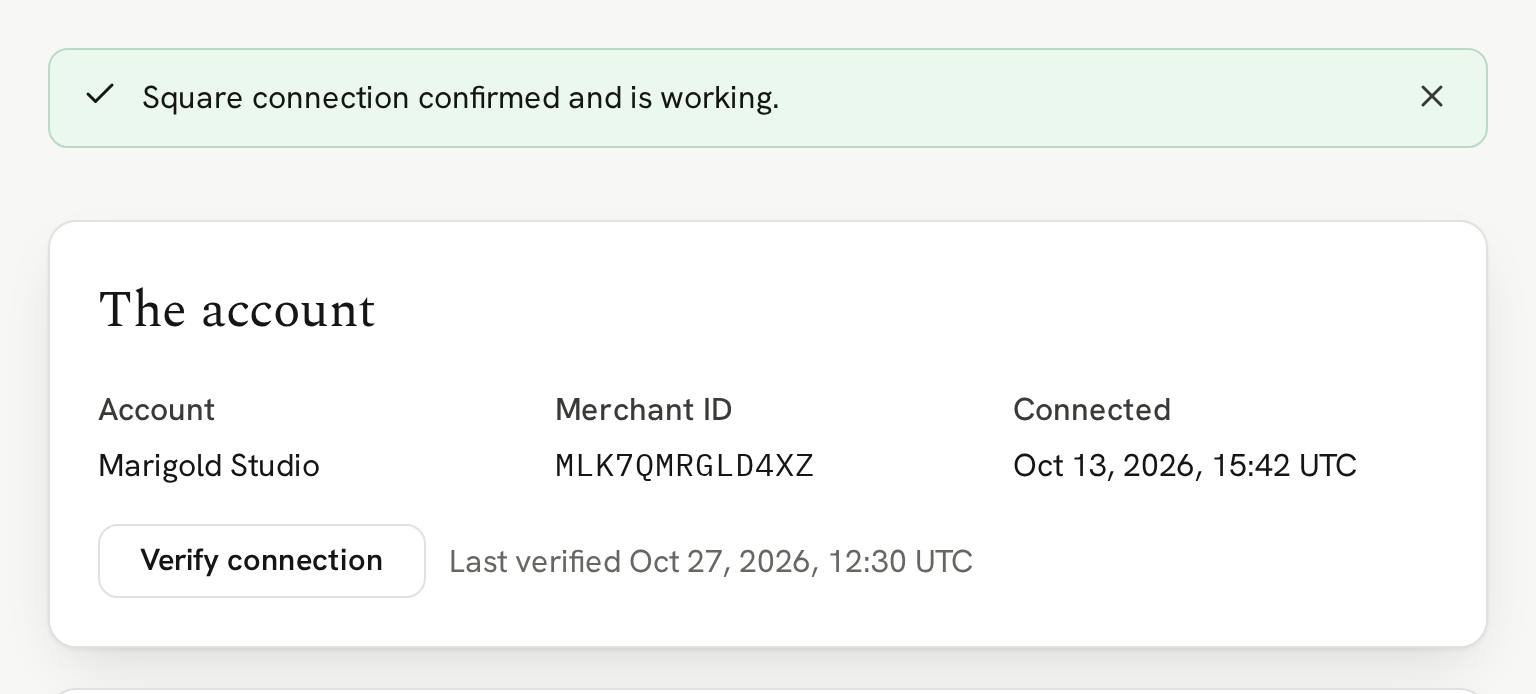
The first block tells you which Square account this is — the business name Square holds for it, its Merchant ID, and when it was connected:
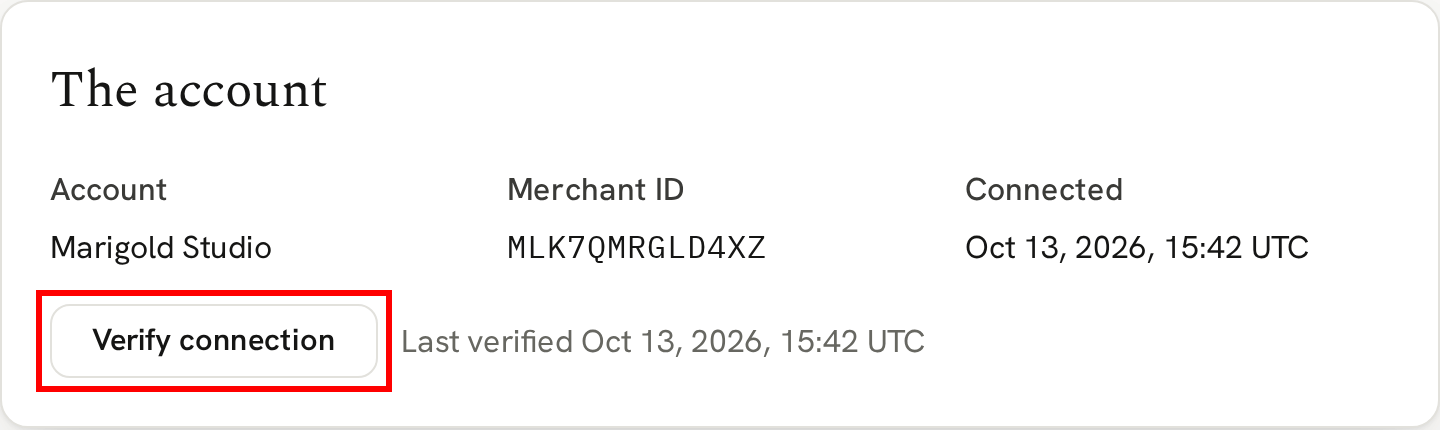
You can confirm the connection at any time by clicking the "Verify connection" button, which will show a notification banner with the details of the connection:
What it delivers
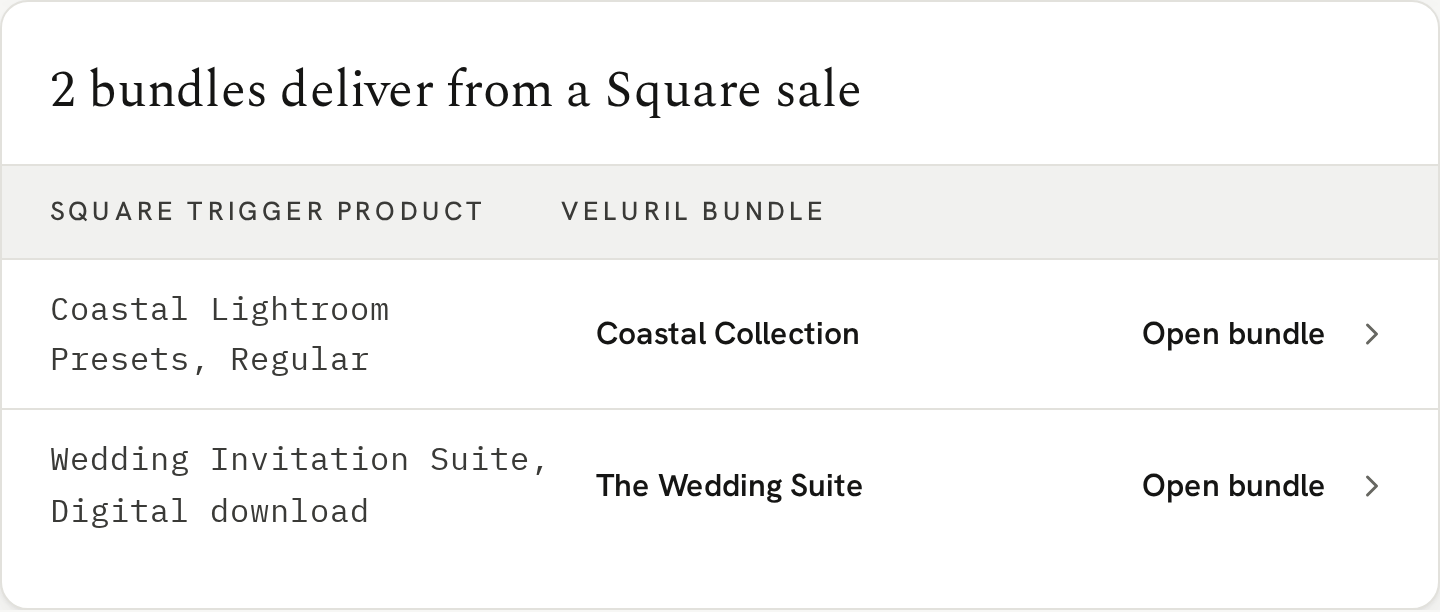
The second block shows what this connection is delivering — one row per link, naming the Square Trigger product and the Veluril bundle it delivers:
Disconnect Square
If you ever need to unlink and disconnect your Square account, click the "Disconnect Square" button. You’ll see a confirmation popup and once you are ready, click the button to disconnect:
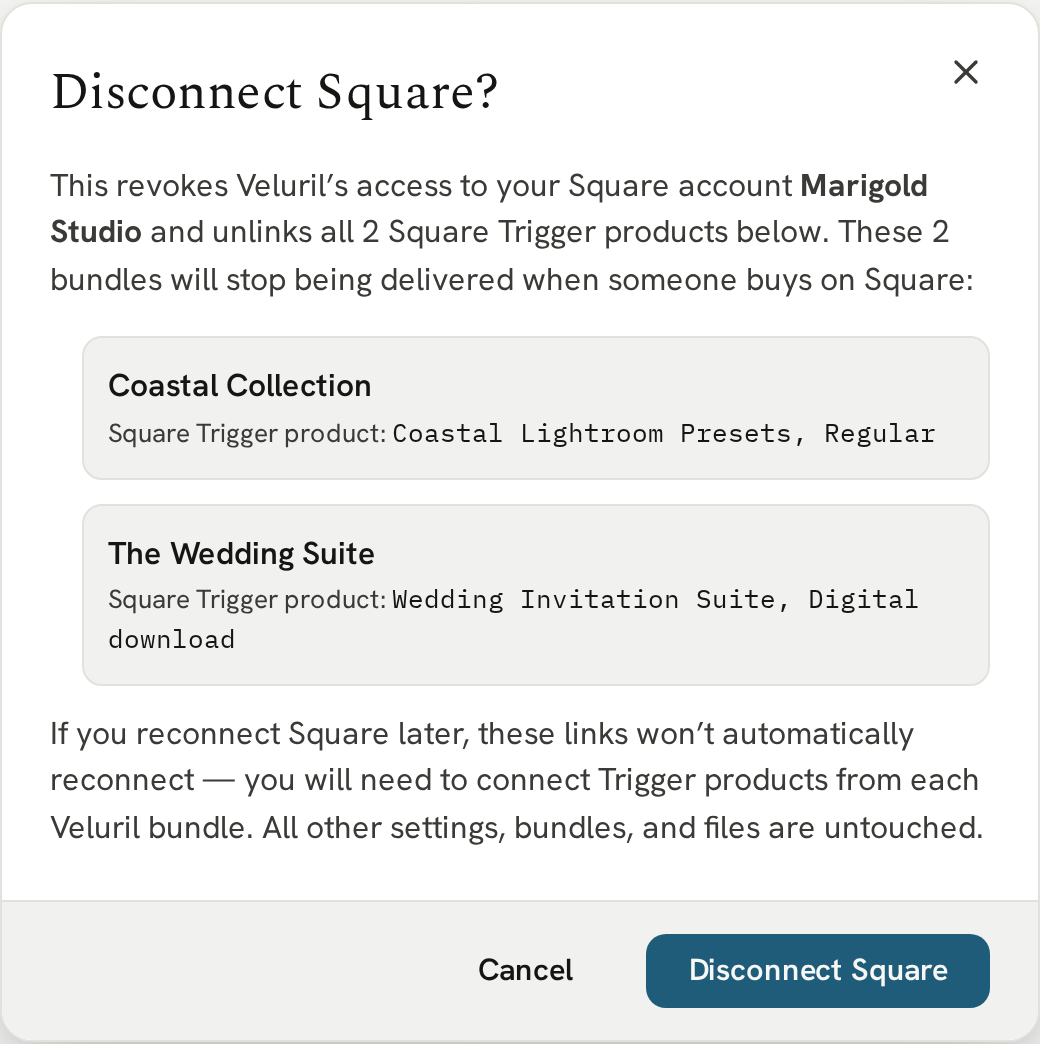
It’s important to note that when you disconnect your Square account, Trigger products are disconnected and any waiting or future orders are not processed. It severs all links to your Square account.
One Square account, one library
Only one Square account can be connected to one Veluril library at a time. If you try and connect a Square account that’s already connected to a Veluril library, we’ll tell you that it’s already connected.
Next
Your Square account is connected, but no sale delivers anything yet — that takes one more step, linking a bundle to the Square product that triggers it.