Checking on your deliveries
Every delivery you send is on your Deliveries page. From there you can find any one of them in seconds and see exactly what happened: when the email arrived, when the download page was opened, and what was downloaded.
Your Deliveries page
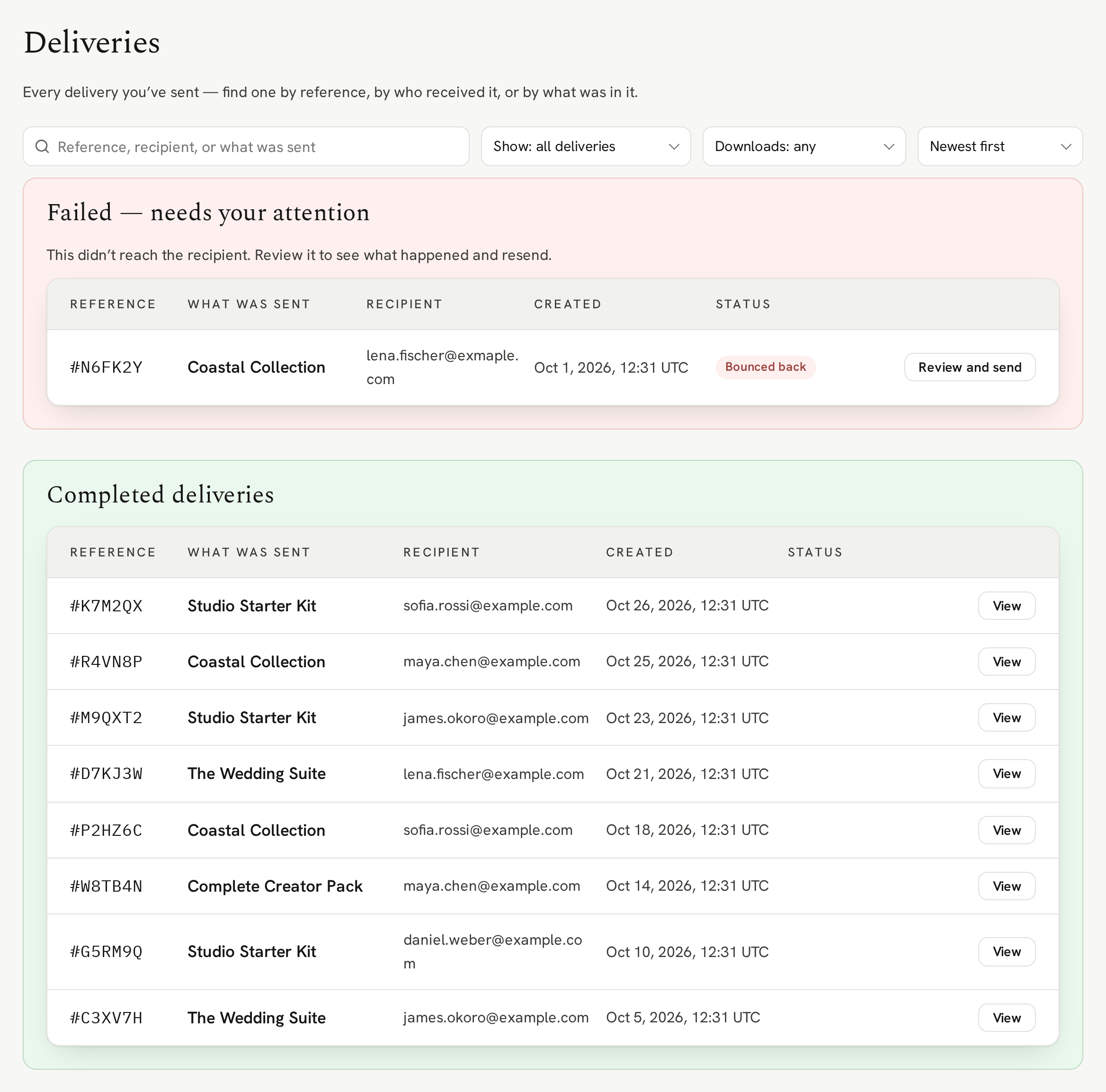
Your deliveries are listed newest first. Anything that needs you sits at the top, such as a delivery that couldn't reach its recipient:
Finding a delivery
Type in the search box and the list narrows as you go. It finds a delivery by its reference, the recipient's email or name, what was sent, or your own order reference:
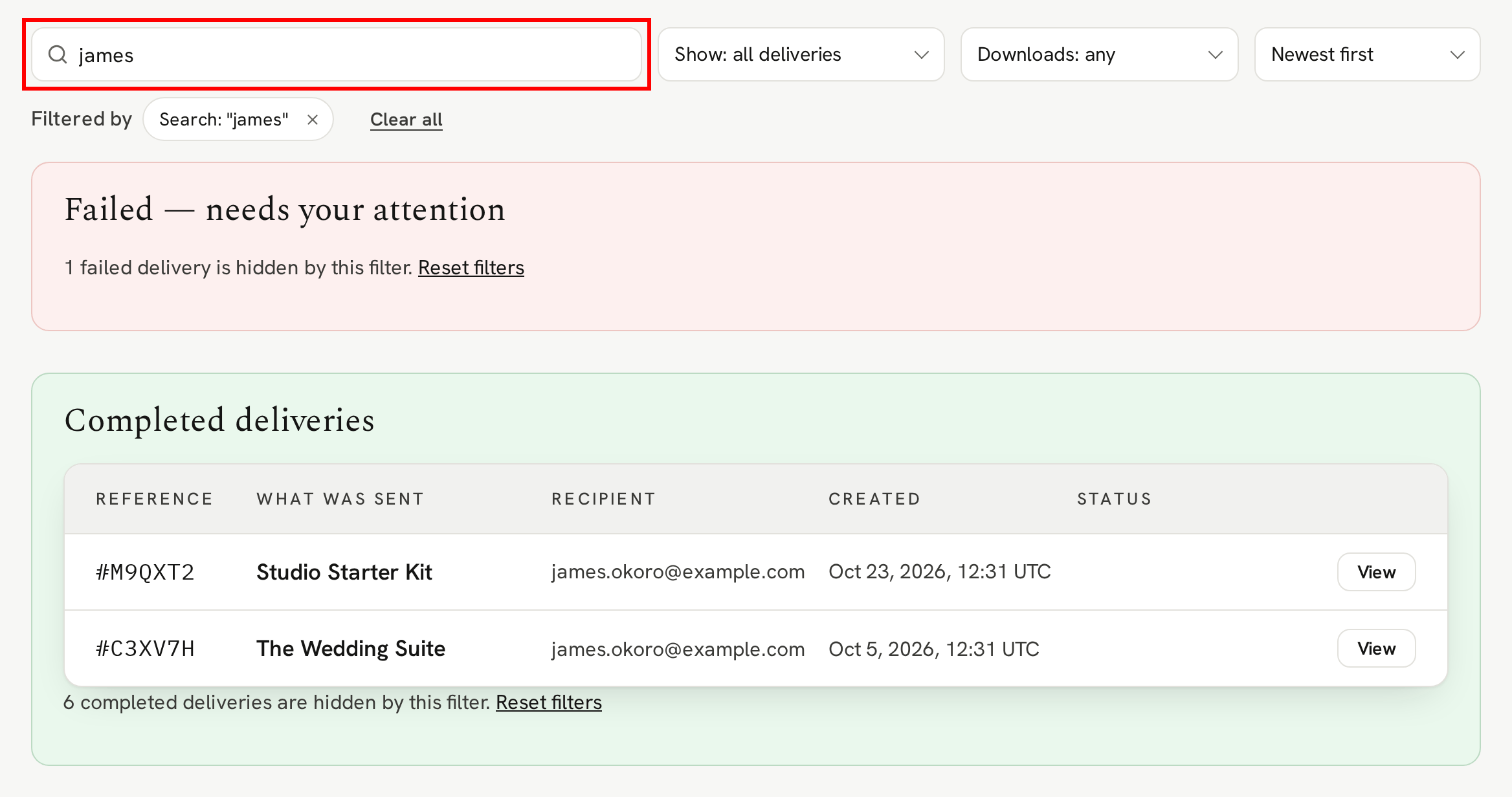
When a recipient gets in touch about their delivery, they'll often quote the delivery reference from their email, like #K7M2QX. Paste it straight in.
The dropdown menus beside the search box narrow the list further, for example to the deliveries nobody has downloaded yet.
A delivery in detail
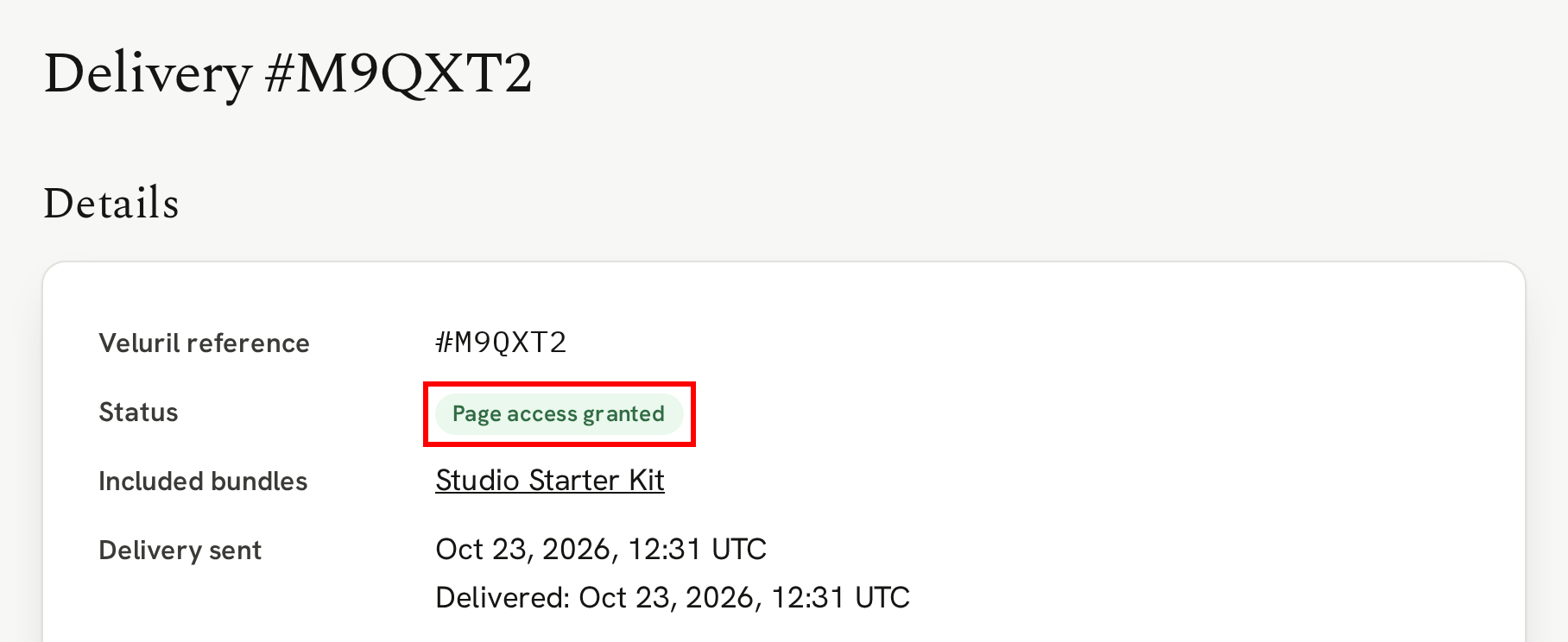
Click a delivery to open it. The Details card answers the first question, did it go? It shows the Veluril reference, its status, what was in the delivery, and when it was sent. Page access granted means their download page is open to them:
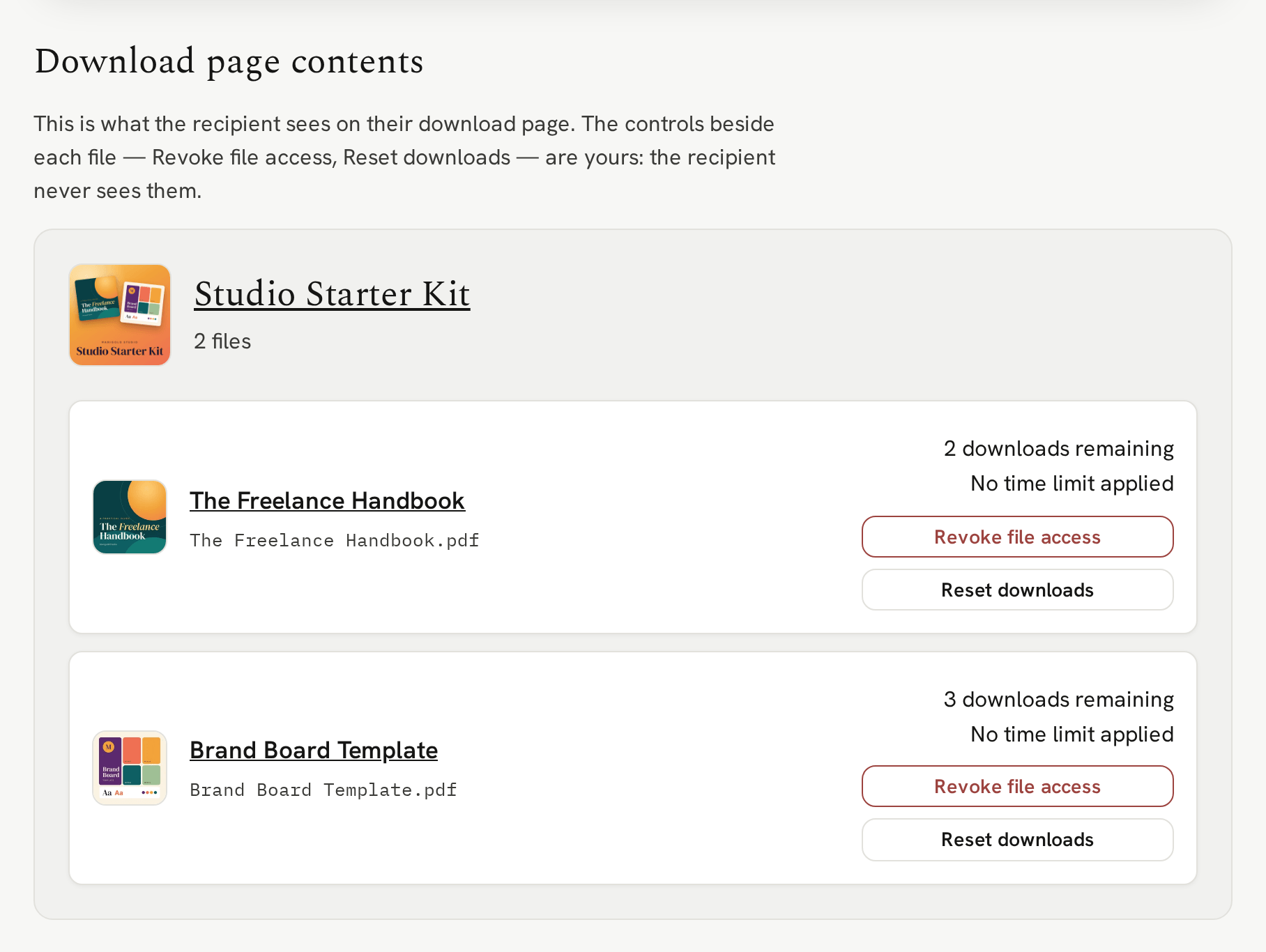
Download page contents shows the delivery the way your recipient sees it, with how many downloads each file has left and any time limit:
Did it arrive?
The Emails card shows the status of each delivery email. Delivered means their mail server accepted it:
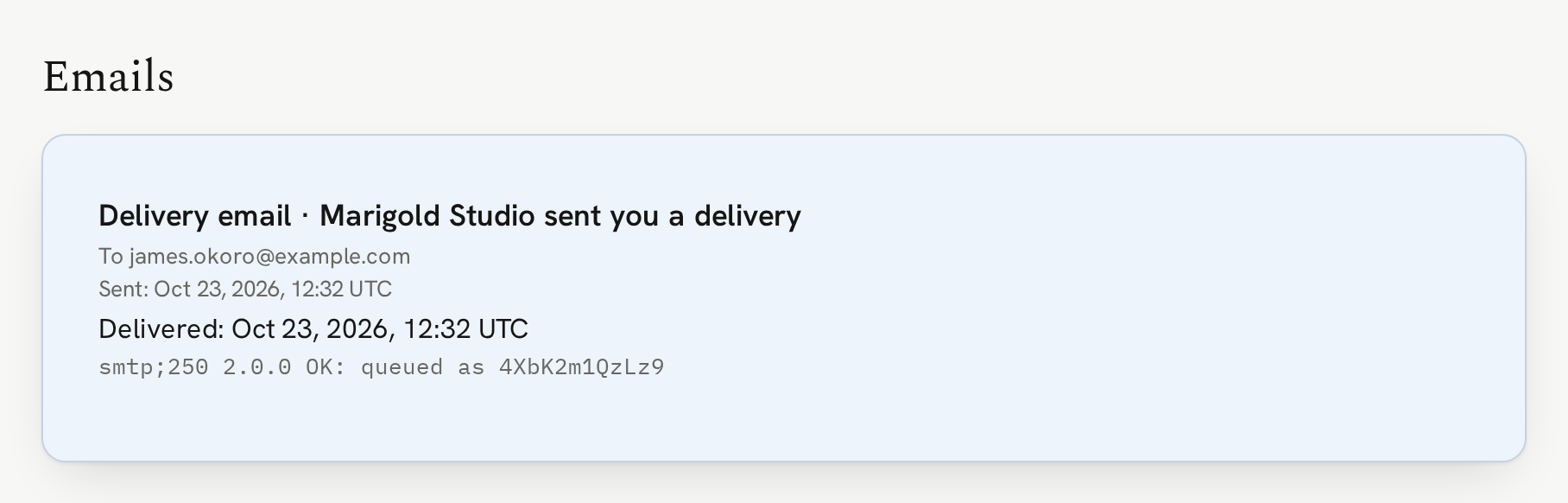
The Activity card shows a log of activity for that delivery, such as what content was downloaded and when:
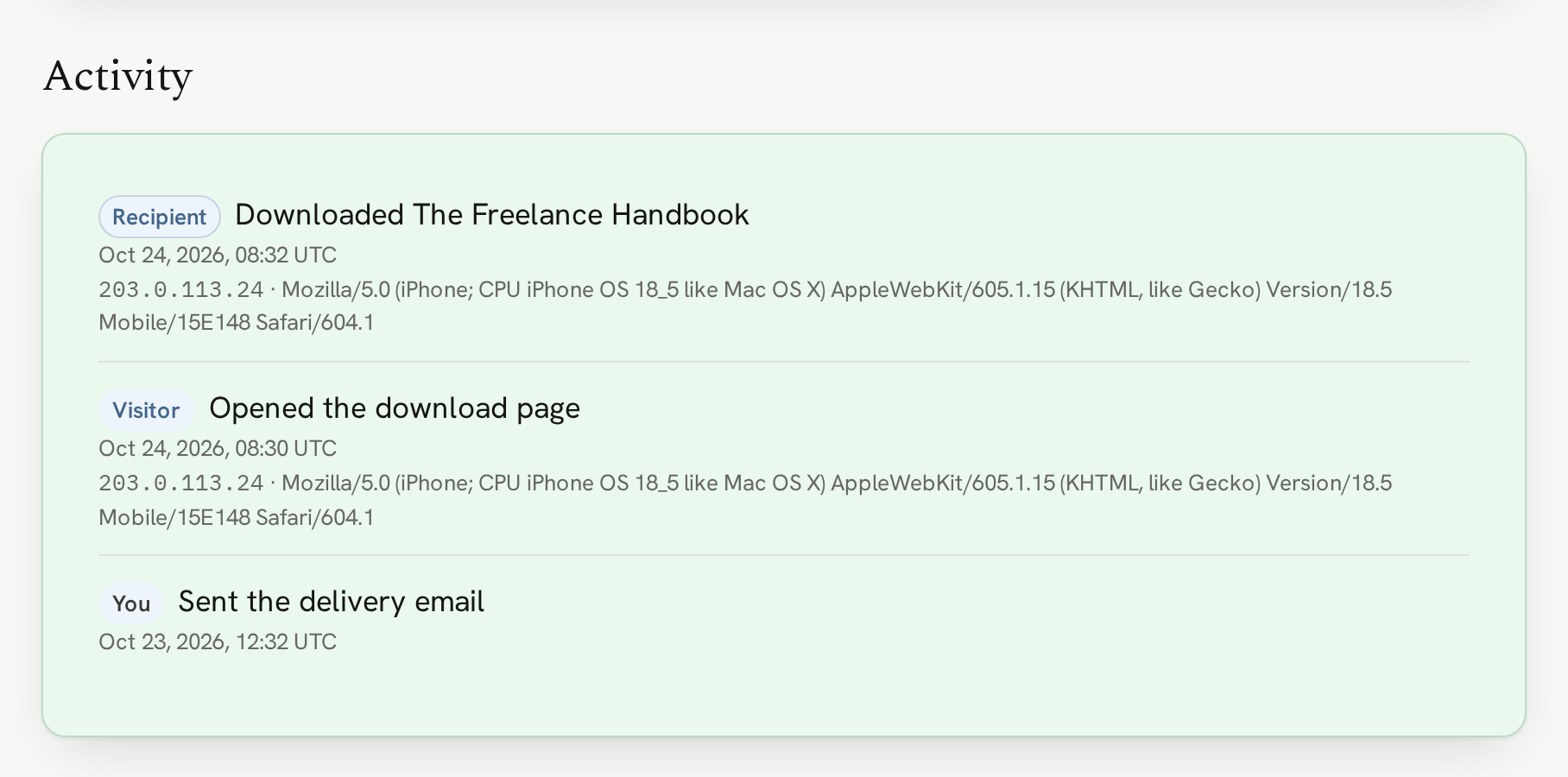
You can use this information in the case of a recipient saying they never got their delivery. It can help them trace the email and remind them if they accessed the page.
Next
When a recipient needs their email again, or a delivery didn't reach them, you can resend it.
Next → Resending a delivery