Resending a delivery
Emails get lost. When a recipient can't find theirs, you can send it again from the delivery details page. Their download page never changes: we send the same email, with the same link.
Resending the email
Open the delivery from your Deliveries page and click the "Resend delivery" button:
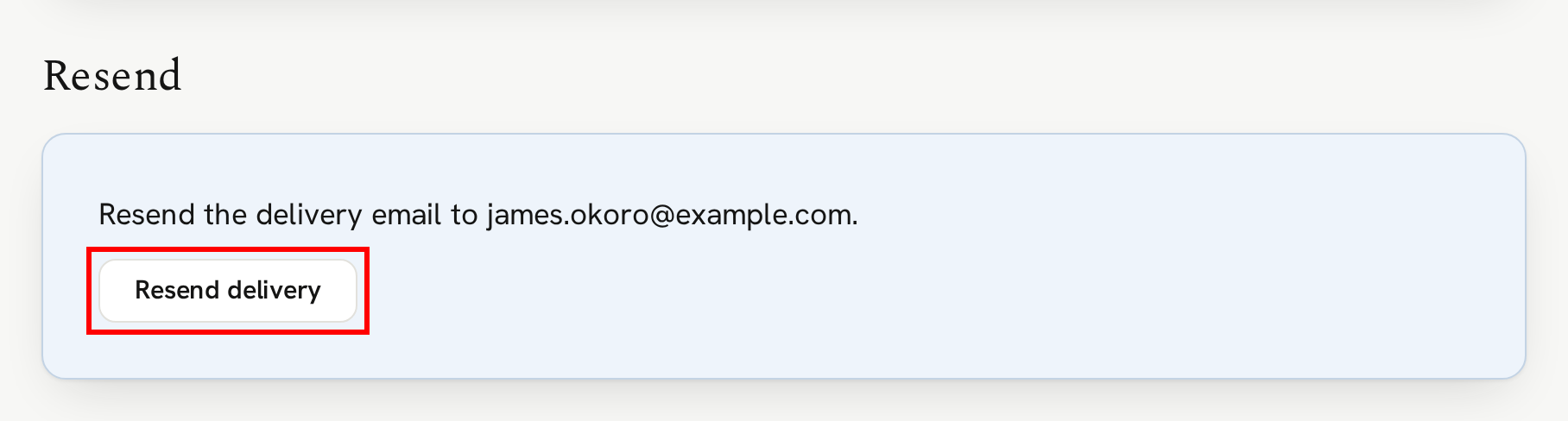
Confirm in the popup and the email goes out straight away. It appears in the delivery's Emails card further down on the page where you can track its progress.
Resending doesn't change their access and if they've used their download attempts, you can reset their downloads instead. See Controlling access to a delivery.
If a delivery didn't reach them
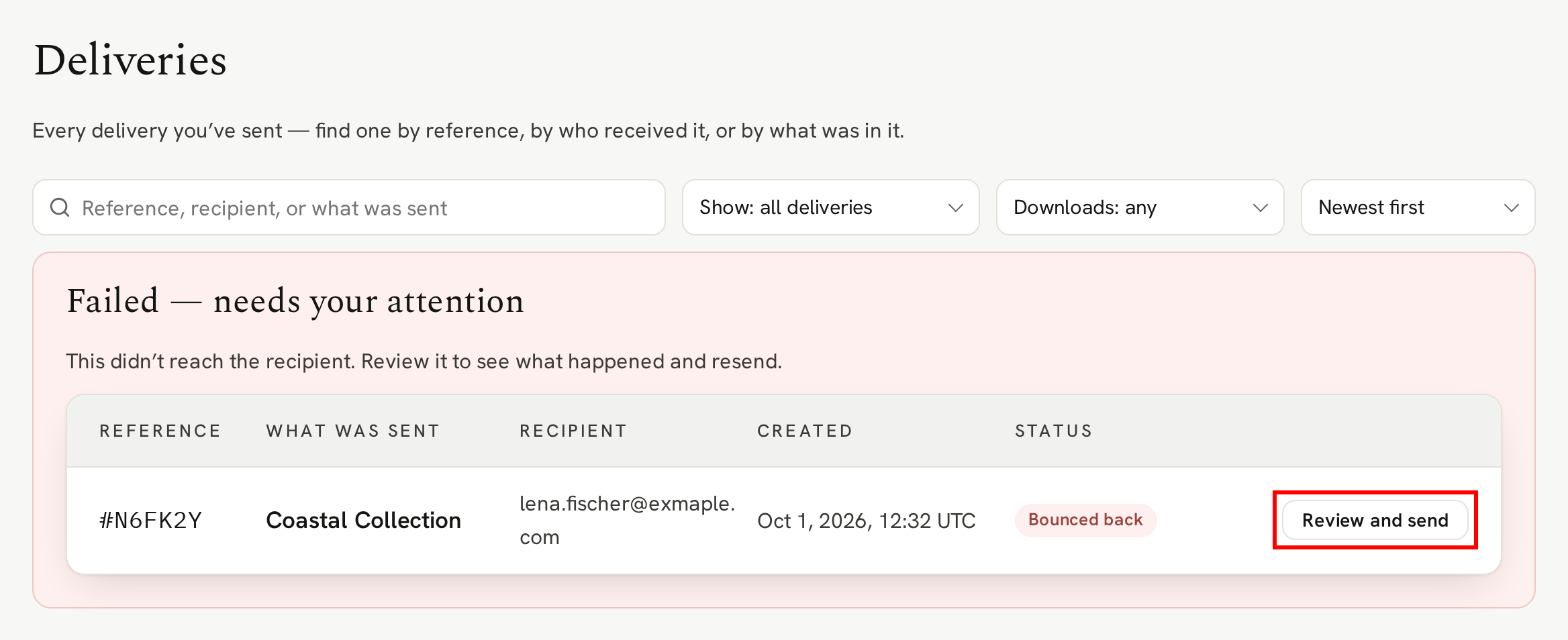
Sometimes a delivery email can bounce or they simply got it wrong when they typed it in. If that happens, we let you know and any that need your attention sit at the top of your Deliveries page, under "Failed — needs your attention". Click "Review and send" to open it:
The top of the delivery's page tells you what went wrong. If the address can't receive email, often because of a typo, enter the correct one and click "Update address & resend":
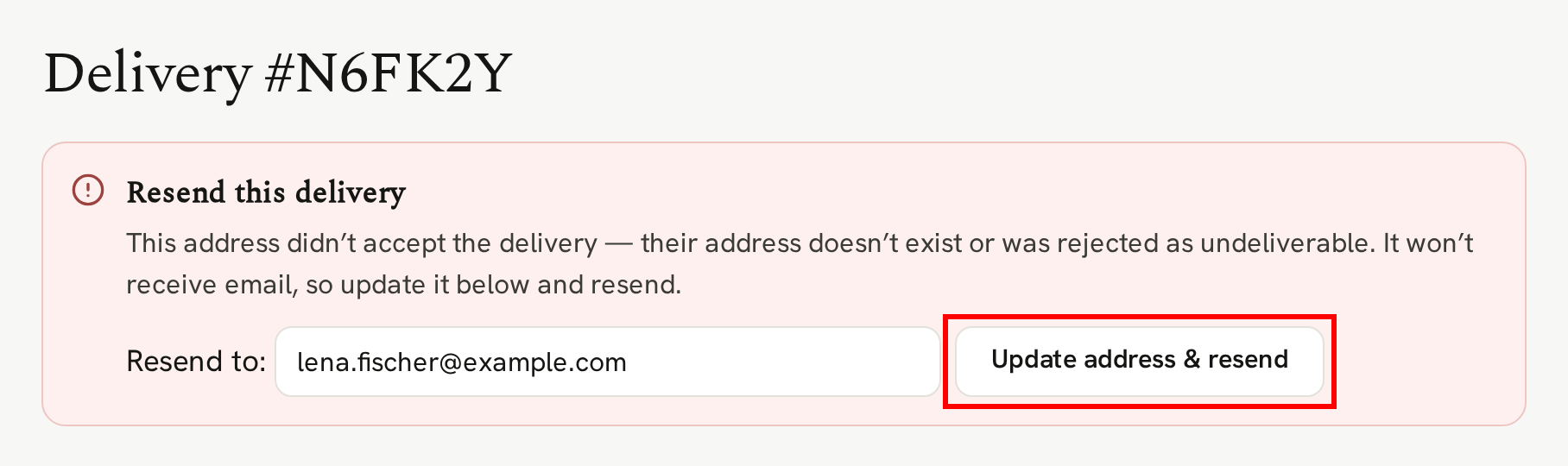
If it was only a temporary problem, such as a full mailbox, the address is already filled in. Resend once it's sorted.
If a delivery is marked "Marked as spam", the email did reach them and they reported it, so "Resend delivery" and "Edit details" aren't offered. See When a recipient marks your email as spam.
Correcting the recipient's details
Spotted a mistake in the recipient's name or email address? Click the "Edit details" button in the Recipient card. Correct the details and click "Save details":
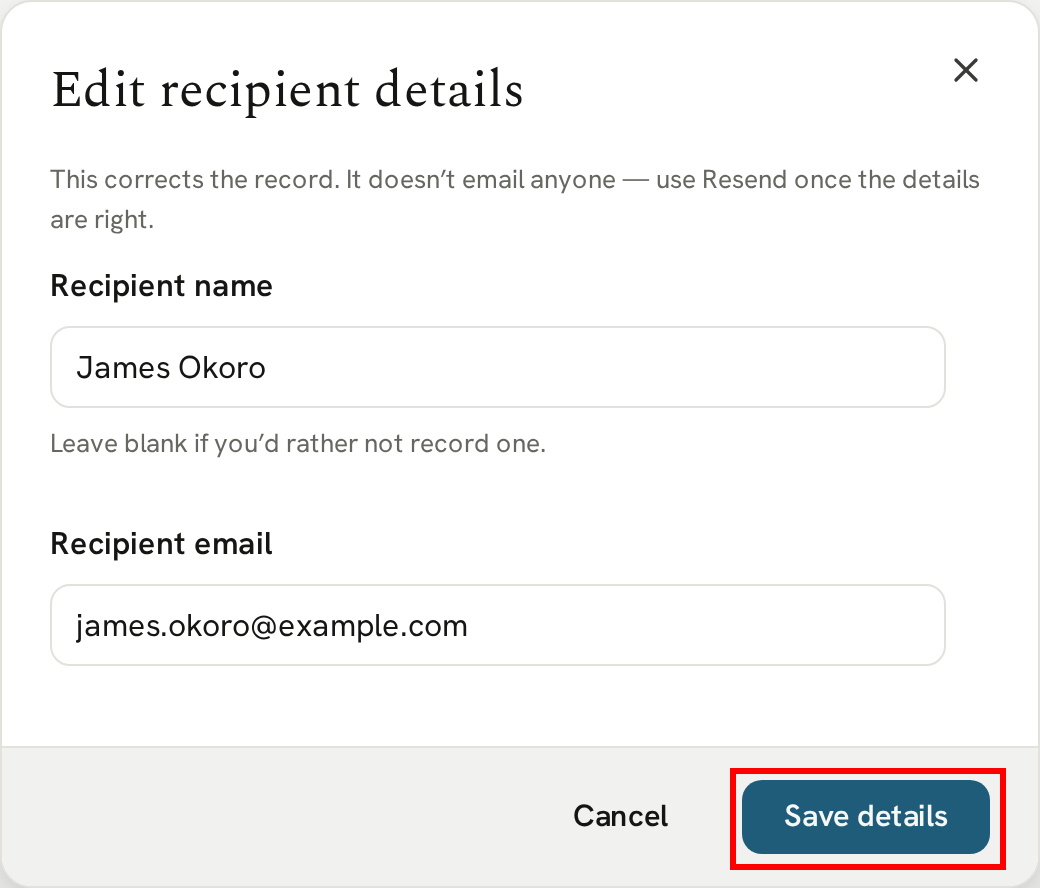
Then click "Resend delivery" to send the email to the corrected address.
Next
Resending gets the email to them. You can also change what they can download.