Controlling access to a delivery
You're always in control of what a recipient can download. From the delivery details page you can revoke access to the whole delivery or to a single file, give it back at any time, and reset downloads when a recipient has used theirs up.
Revoking access to the whole delivery
Sent a delivery to the wrong address, or refunded an order? Open the delivery from your Deliveries page and click the "Revoke access" button in the Delivery access card:
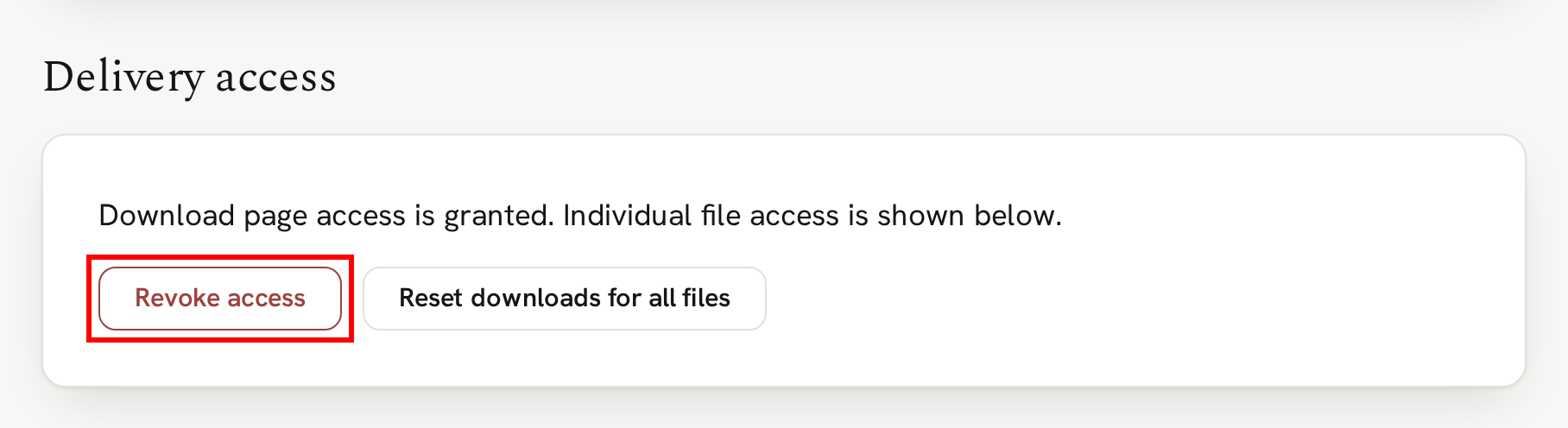
Confirm in the popup. The recipient can no longer access or download any content in the entire delivery. They see that access has been revoked, with a way to contact you.
If the order came through Square, you don't need to: when a Square sale is refunded or disputed, the default action is to revoke access and email you. You can change that in Settings → Refunds and disputes. See When a sale is refunded or disputed.
Revoking never deletes anything. It just stops the recipient from being able to download their delivery. You can restore access at any time.
Restoring access
To give it back, click "Restore access":
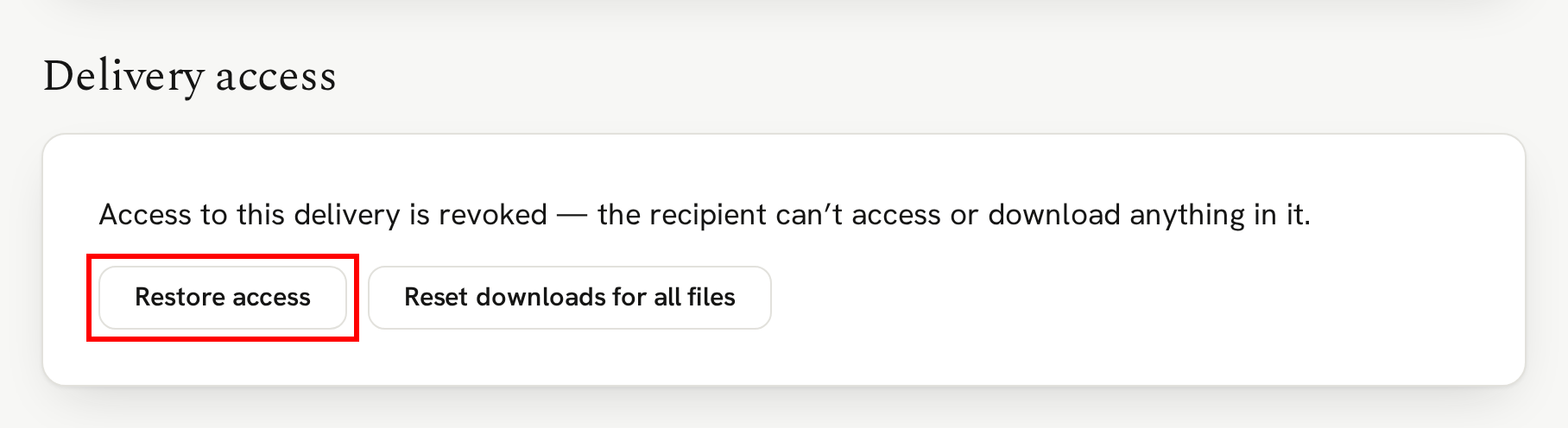
This restores the delivery and every file in it, including any content you revoked individually.
If the delivery is marked "Marked as spam", there's no "Restore access" button. The way back is a new email address. See When a recipient marks your email as spam.
Revoking access to one file
To prevent access to just one file in a delivery, use the controls beside that content in the 'Download page contents' section. Click "Revoke file access":
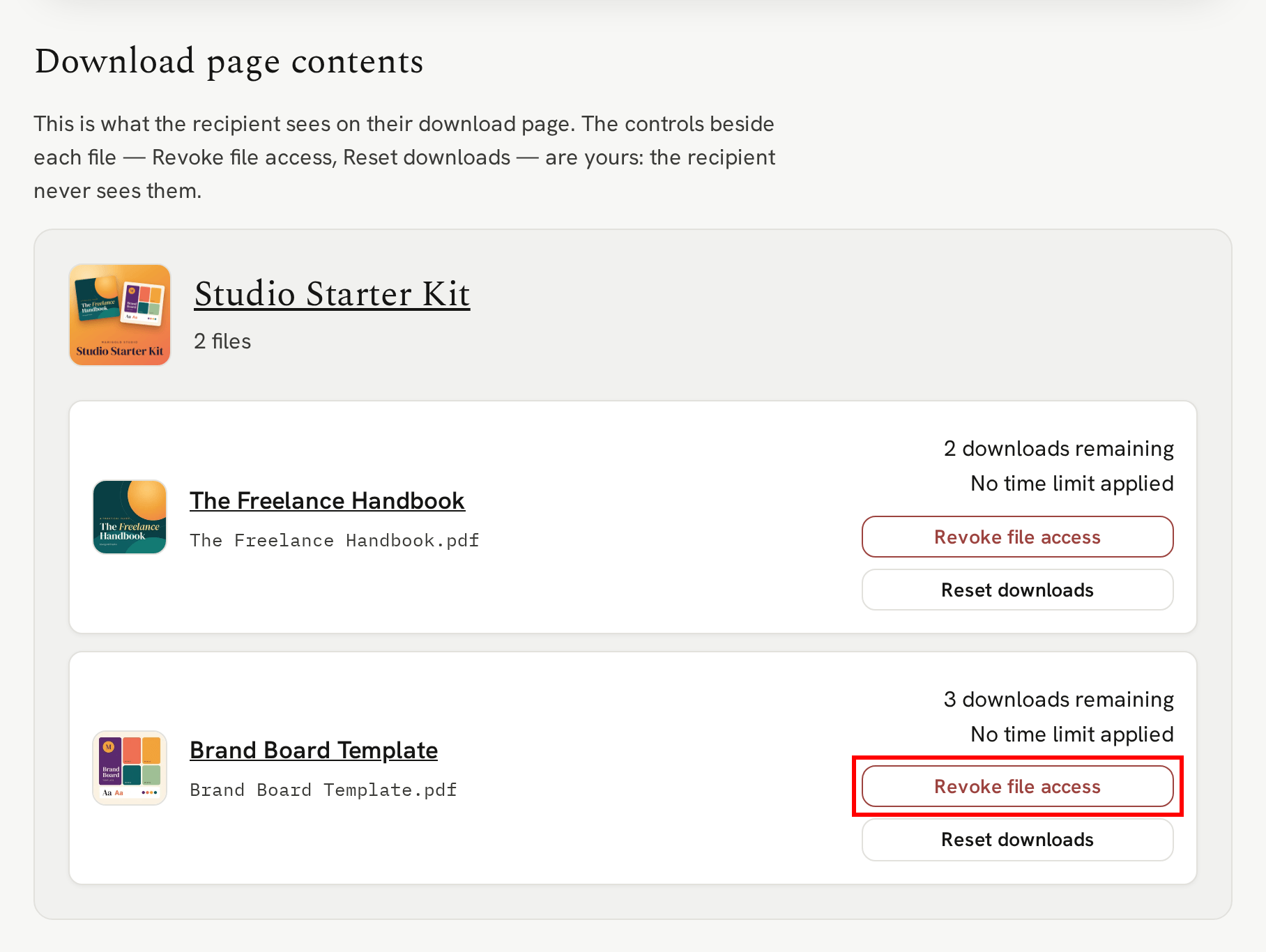
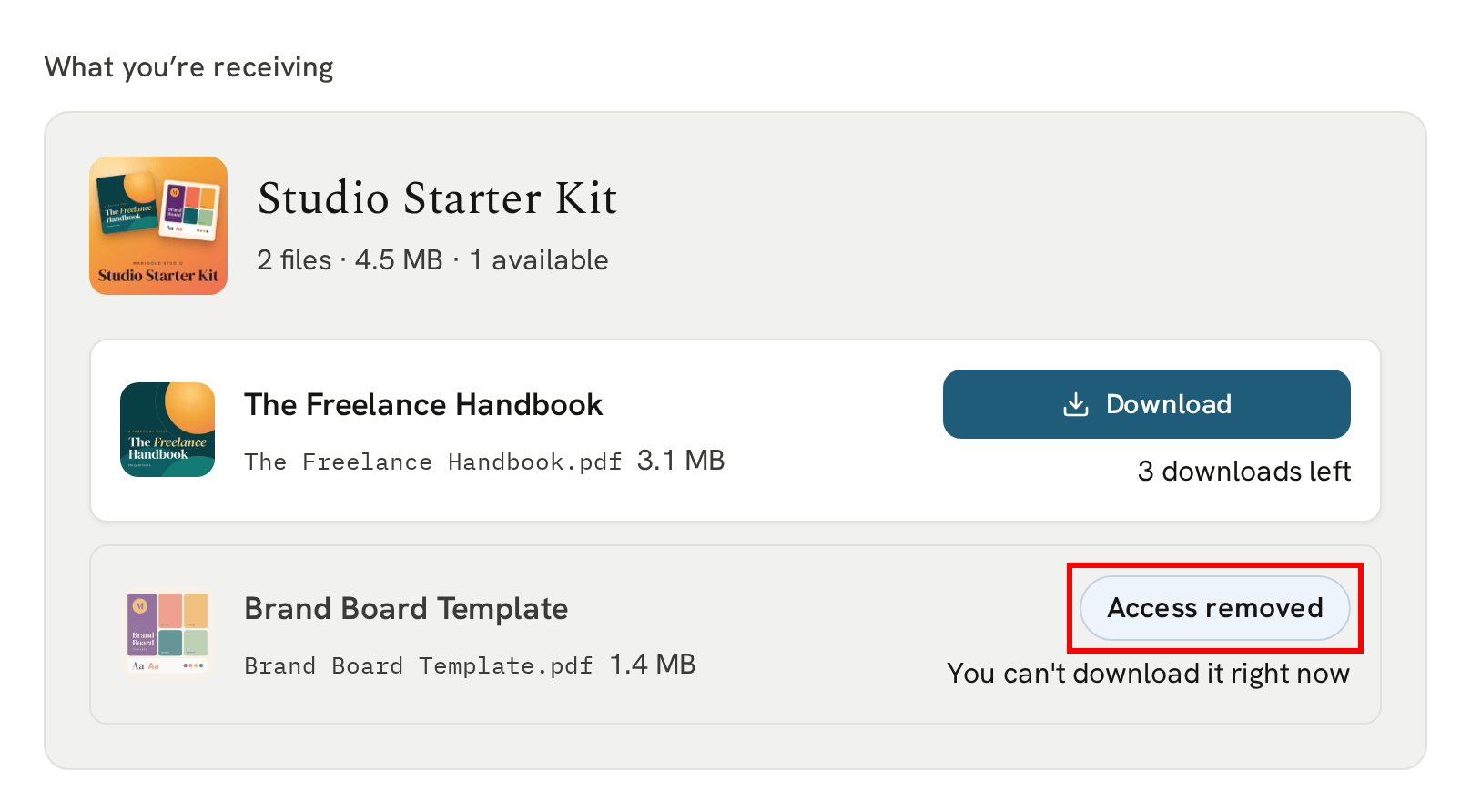
Only that file is affected. Your recipient sees it marked "Access removed" (see If a recipient can't download a file). To give it back, click "Restore file access" in the same place:
Resetting downloads
By default, each item of content can be downloaded up to 3 times. If a recipient has used them all, perhaps on a new computer, the file's row tells you. Click "Reset downloads" beside it:
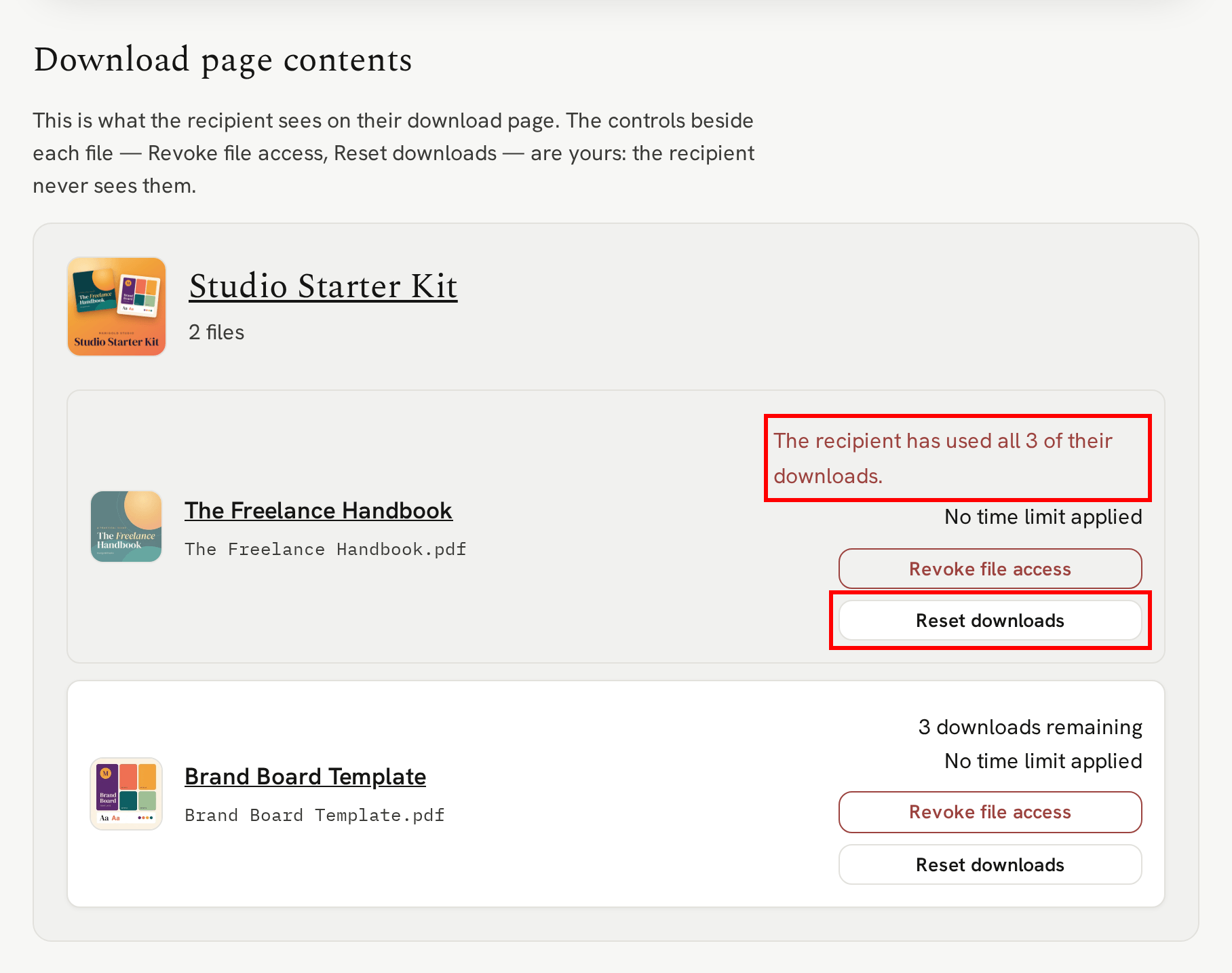
Their downloads start again, and any time limit runs again from now.
To reset every file at once, click "Reset downloads for all files" in the Delivery access card:
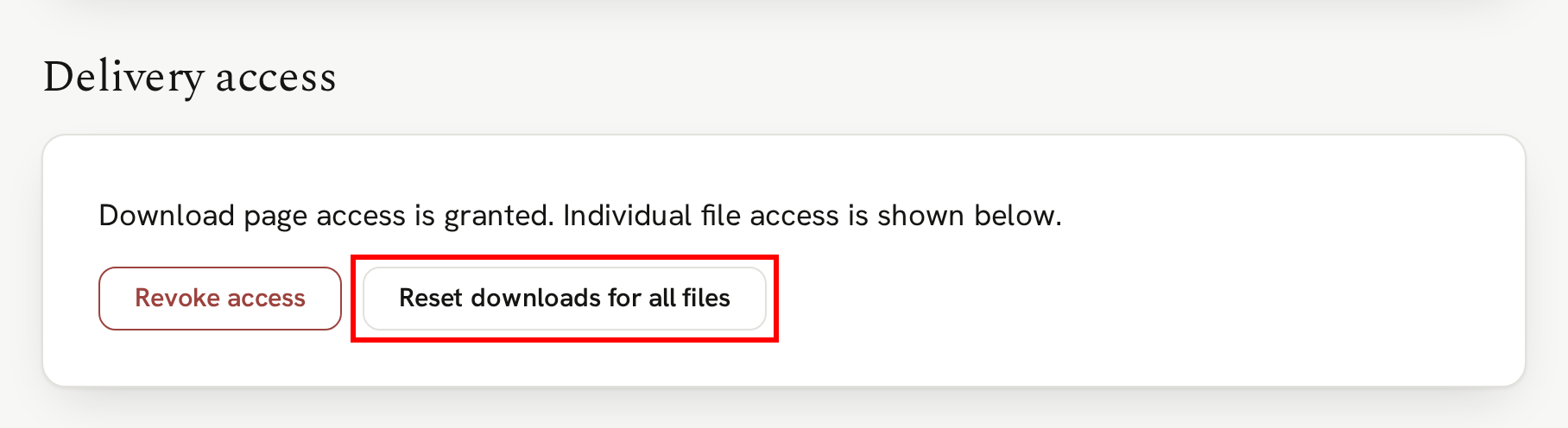
A reset doesn't change access: a revoked file stays revoked until you restore it.
The download limit and any time limit are set on your content. See Uploading your content.
Deleting a delivery
Finally, if a delivery was a mistake or just needs to be permanently removed, you can delete it. To delete a delivery, scroll to the bottom of the delivery details page and click "Delete delivery".
As this is a permanent action and cannot be reversed, you will need to type the delivery ID to confirm:
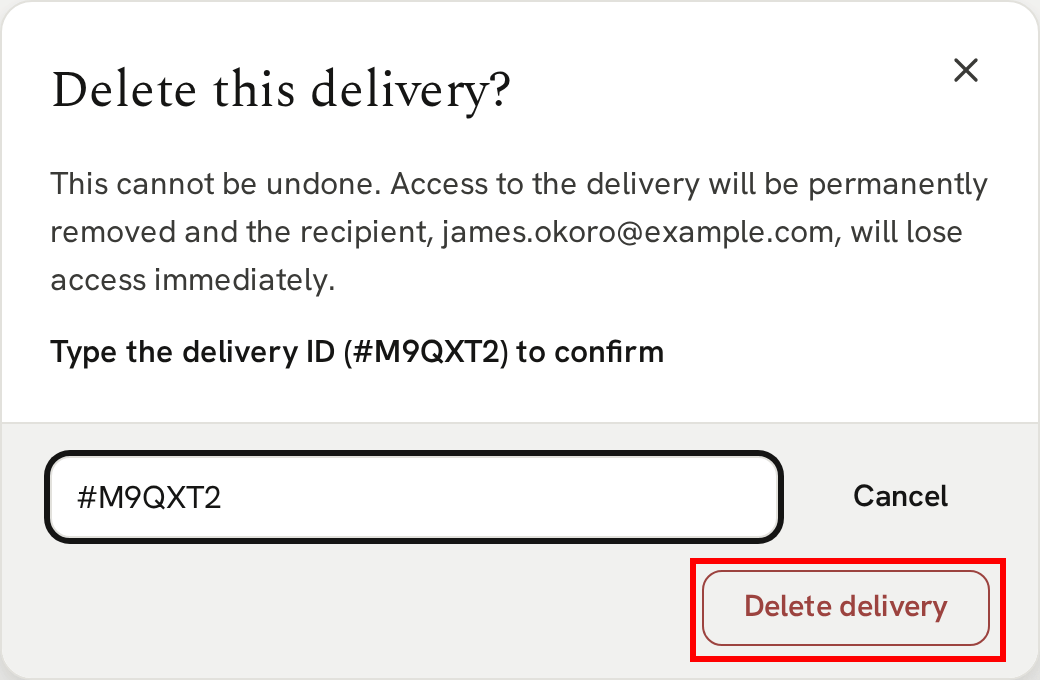
Once deleted, the delivery leaves your library, and the recipient can no longer download anything. However, it will still count toward your delivery total for that billing period (free if you are on Free Explore).
Next
That's everything you can do with a delivery. Now see it from your recipient's side.
Next → What your recipient receives