Sending a delivery
Sending a delivery takes one button and one email address. Your recipient gets an email with a link to their private download page, and you get a record of everything that happens next.
Start from the bundle
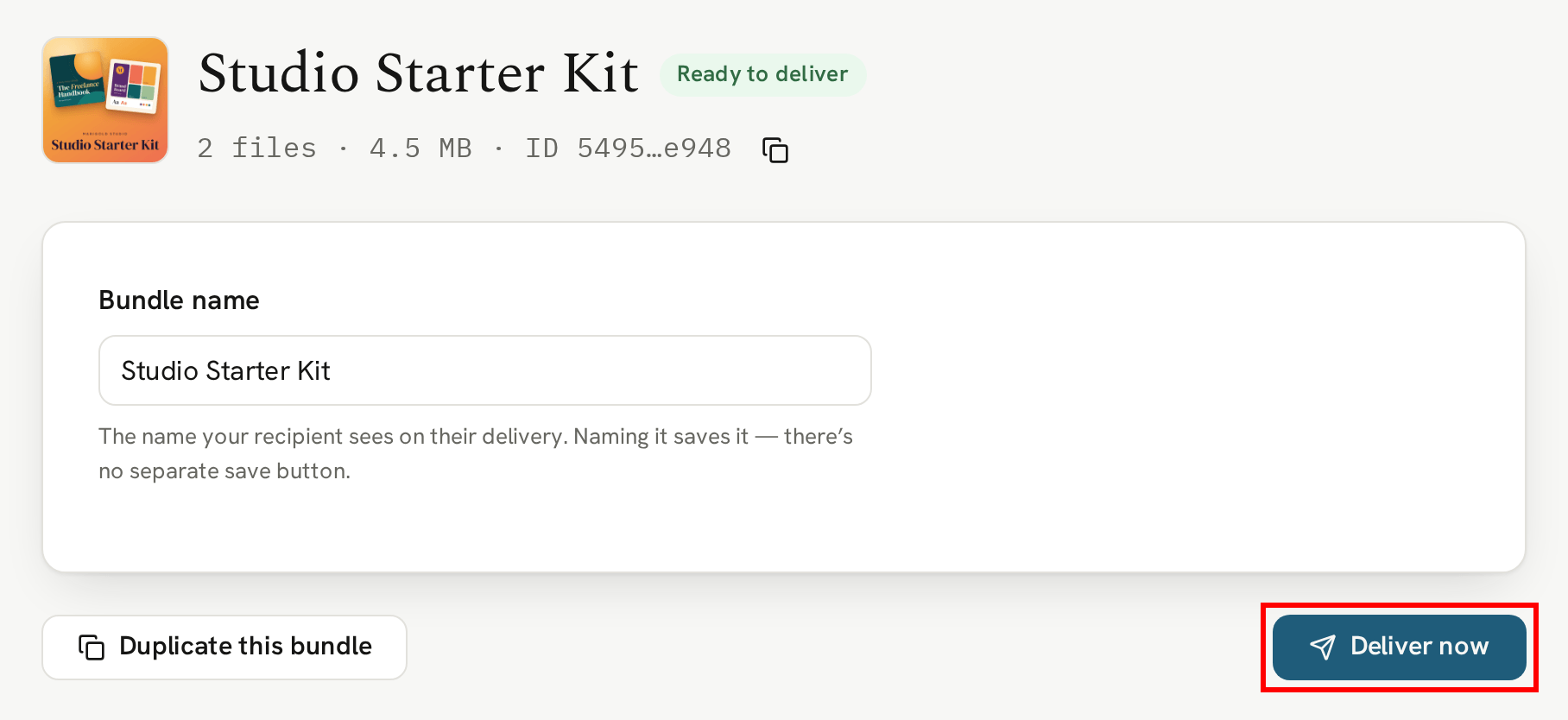
Every delivery sends a bundle. Open the bundle you want to send from your Bundles page and, once it's marked Ready to deliver, click the "Deliver now" button:
Who it's going to
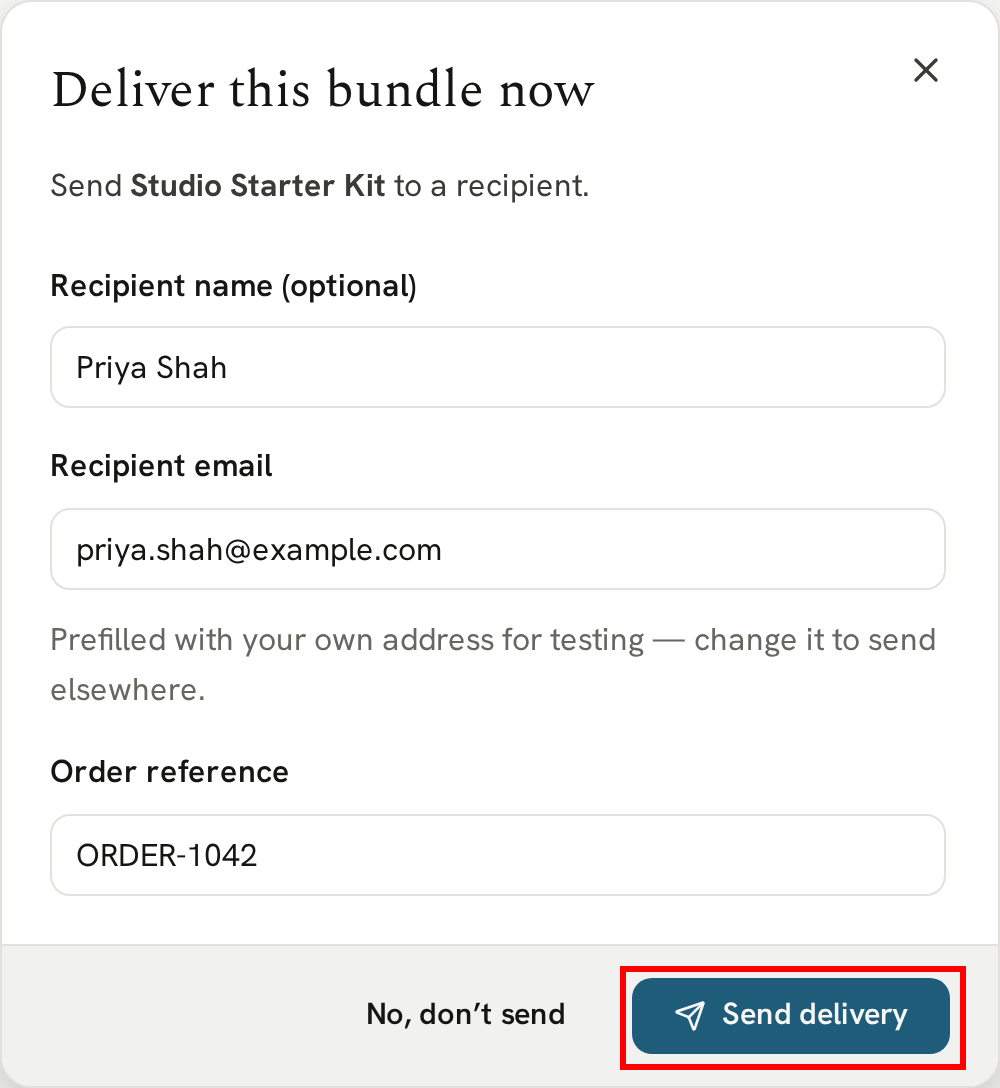
The recipient email is the only thing you need. We fill in your own address to start with, so your first delivery can be a test to yourself. Change it to send to anyone else.
On the Free Explore plan, you pick from your saved test recipients instead of typing an address. See test recipients for how to add them.
The recipient name is optional, and it's for you: it shows on the delivery in your Deliveries page, and you can search by it.
The order reference is optional too. If the sale came through your own store, put its order number here. It's kept with the delivery, so a search for that order number finds it later. Your recipient never sees it.
Check the address, then click "Send delivery":
The email goes out straight away. If you ever send to the wrong address, you can revoke access to the delivery from its page at any time.
If the address has marked one of your emails as spam, we won't send to it, and we ask for a different address. See When a recipient marks your email as spam.
Sent
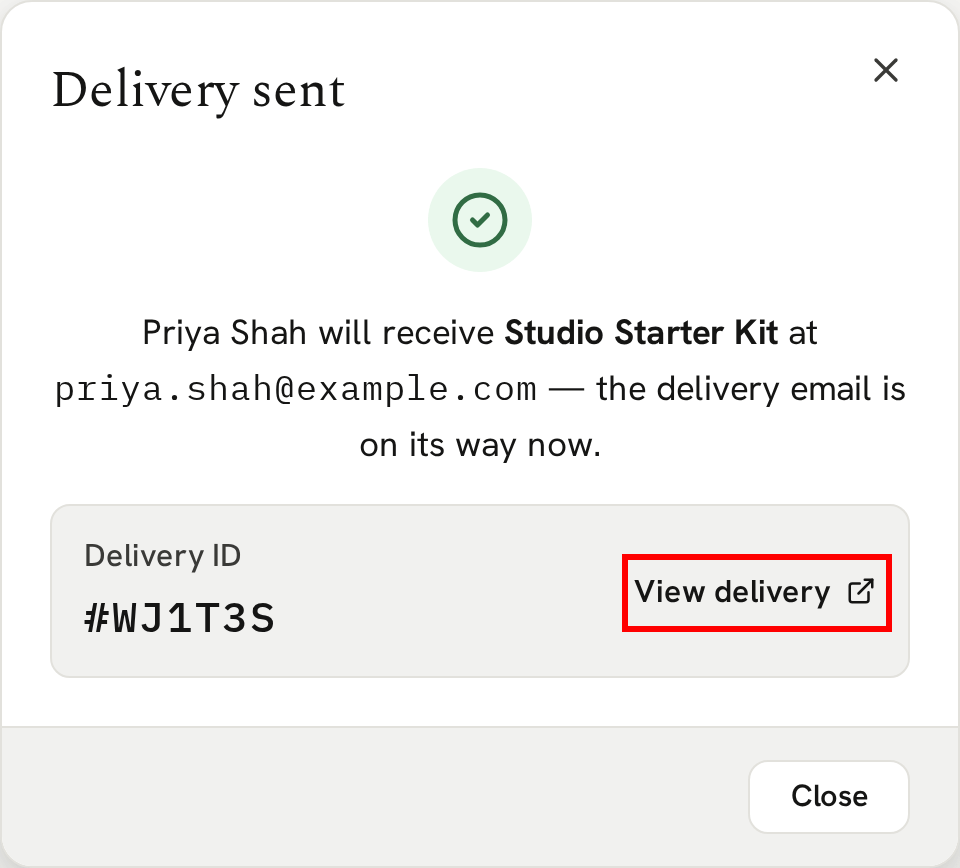
The confirmation shows the delivery ID. It's the same reference your recipient sees in their email, so if they ever quote it, you can find their delivery straight away. Click "View delivery" to open it:
A delivery keeps up with its bundle. Add a file to the bundle later and everyone who already received it finds the new file on their download page. There's nothing to resend. We ask whether you'd like to email them about it, and they get the new file either way.
Other ways to send
"Deliver now" is for sending by hand. Veluril can also send deliveries on your behalf: link a bundle to a Square Trigger product and every sale of that product delivers it automatically.
Next
Every delivery you send, however it was sent, is on your Deliveries page.
Next → Checking on your deliveries