Launching your library
Launching your library is the moment everything you set up in Free Explore goes live. The content, bundles, and branding you've prepared are ready, and from now on, all recipients get their deliveries straight away.
What Launching means
Everything you've set up stays exactly the same: your content, your bundles, your Trigger products, your logo, and colors. Nothing needs to be moved or redone.
What changes is who it reaches. During Free Explore, deliveries can only go to up to three test recipients. Once you Launch, that limit is removed and you can deliver to any recipient, and the time you spent preparing your library is what they see.
Your storage is also increased.
Remember that once you Launch your library, you can't return to Free Explore and apply the restrictions.
Before you Launch
To ensure your recipients get the best service, your recipient contact email needs to be confirmed before you Launch. You chose it when you set up your library and you can change it at any time. Whichever email you choose to share, it will need confirming.
If it isn't confirmed yet, click "Email me the link", open the email we send, and click the link inside. Until then, the payment card on the page is grayed out.
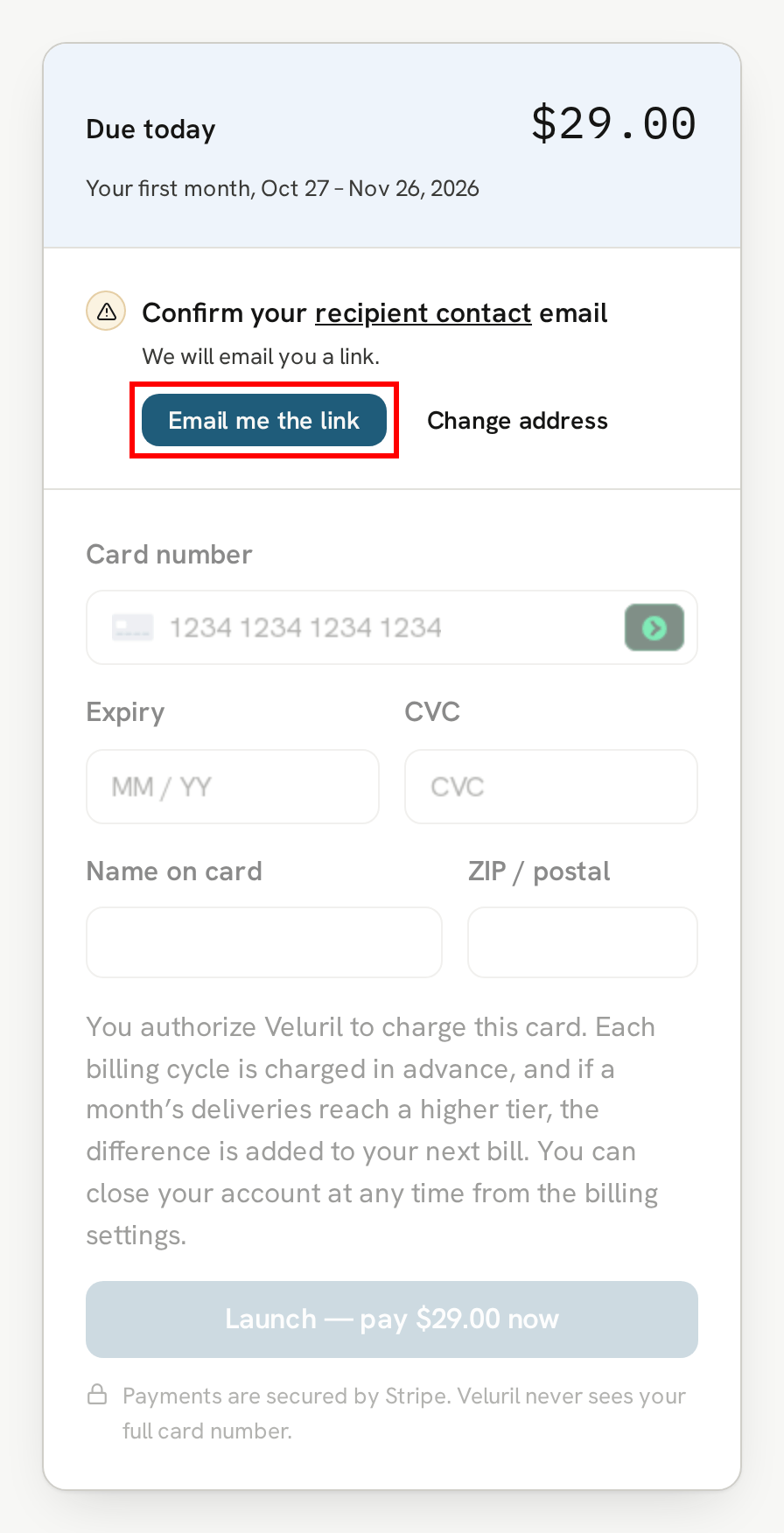
Once it's confirmed, the page shows "Recipient contact email confirmed" and you're ready to Launch.
Launching
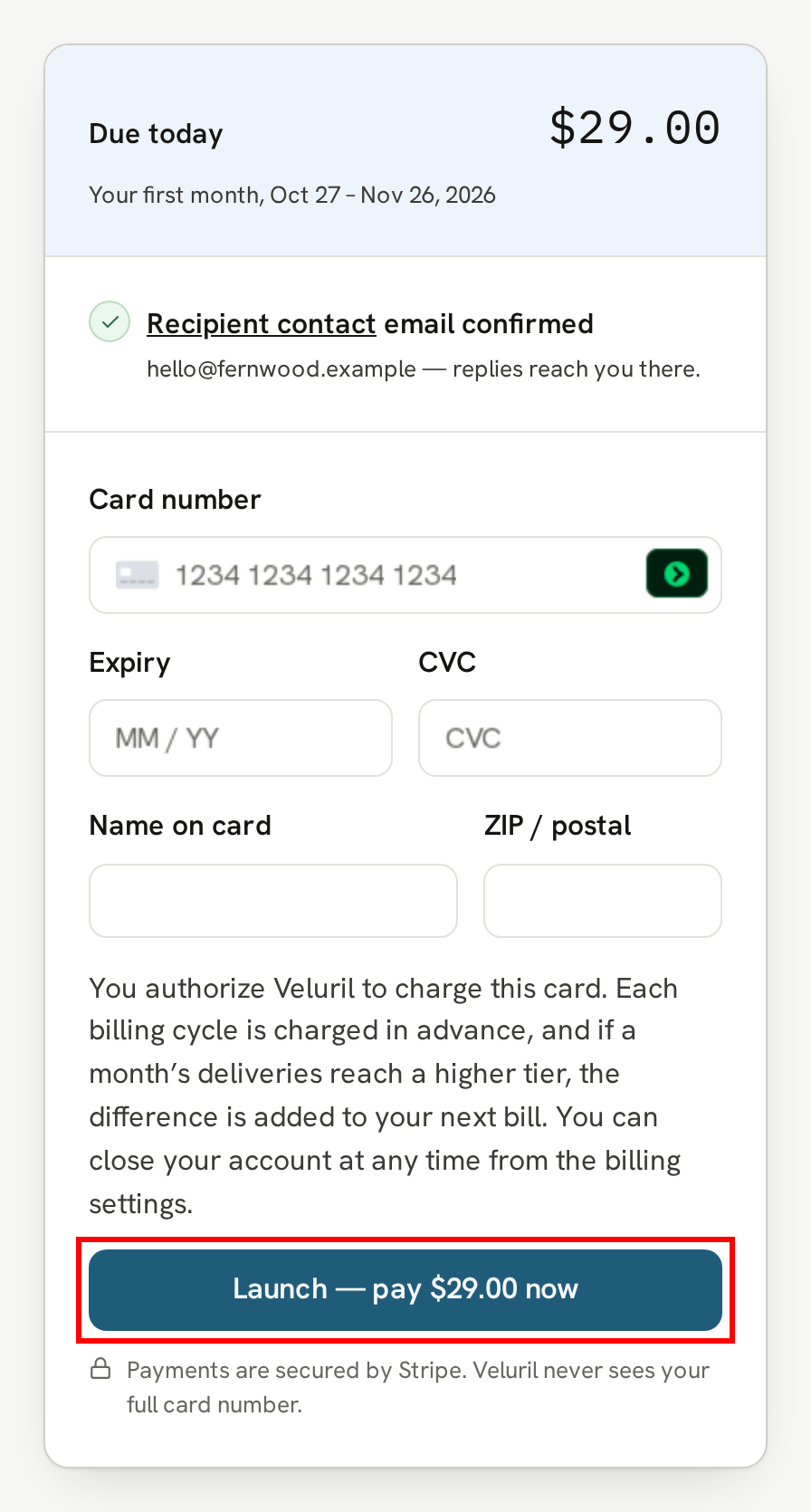
Click "Launch" at the top of your library, or in Settings. Due today shows what you pay now plus tax where it applies.
Enter your card details, or use the card you already have saved, and click "Launch". The button shows your exact total:
While your library Launches, you'll see each step as it happens: charging your card, lifting your recipient limit, raising your storage, and setting your billing date.
Deliveries waiting from Free Explore
If a delivery was created for a recipient that was not one of your test recipients, we held their delivery. Once you Launch, we tell you how many are waiting and ask what to do with them:
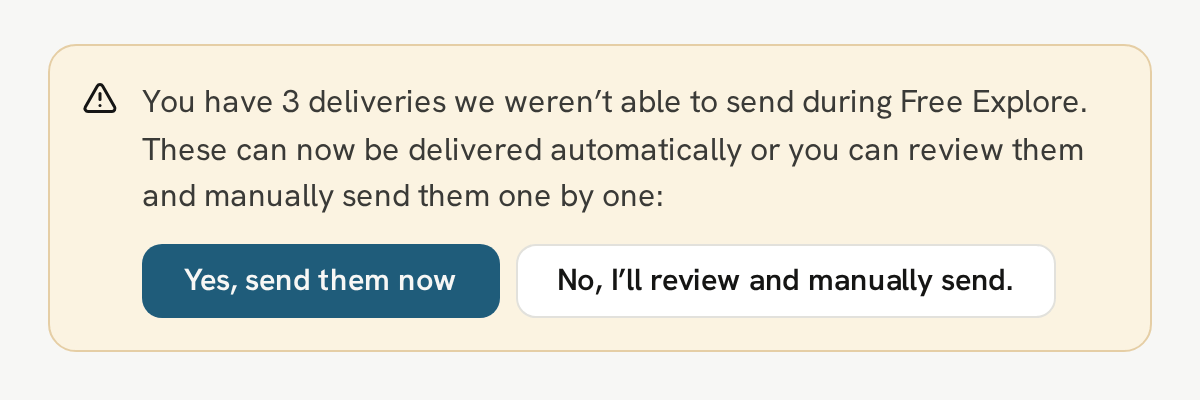
Click "Yes, send them now" and we send them all in the next few minutes. Click "No, I’ll review and manually send." and they wait on your Deliveries page, so you can check each one and send it when you're ready. If you leave the page without choosing, they are also held for manual review.
What you pay from here
Your billing date is the day of the month you Launched. On that date each month, we bill you for the deliveries you made in the month before, so your bill goes up in busy months and back down in quiet ones. If you Launched on the 29th, 30th, or 31st, shorter months bill on their last day.
To see what each delivery volume costs, visit our pricing page.
After you Launch, the page shows your billing date and your next charge, and we email your receipt to your sign-in email:
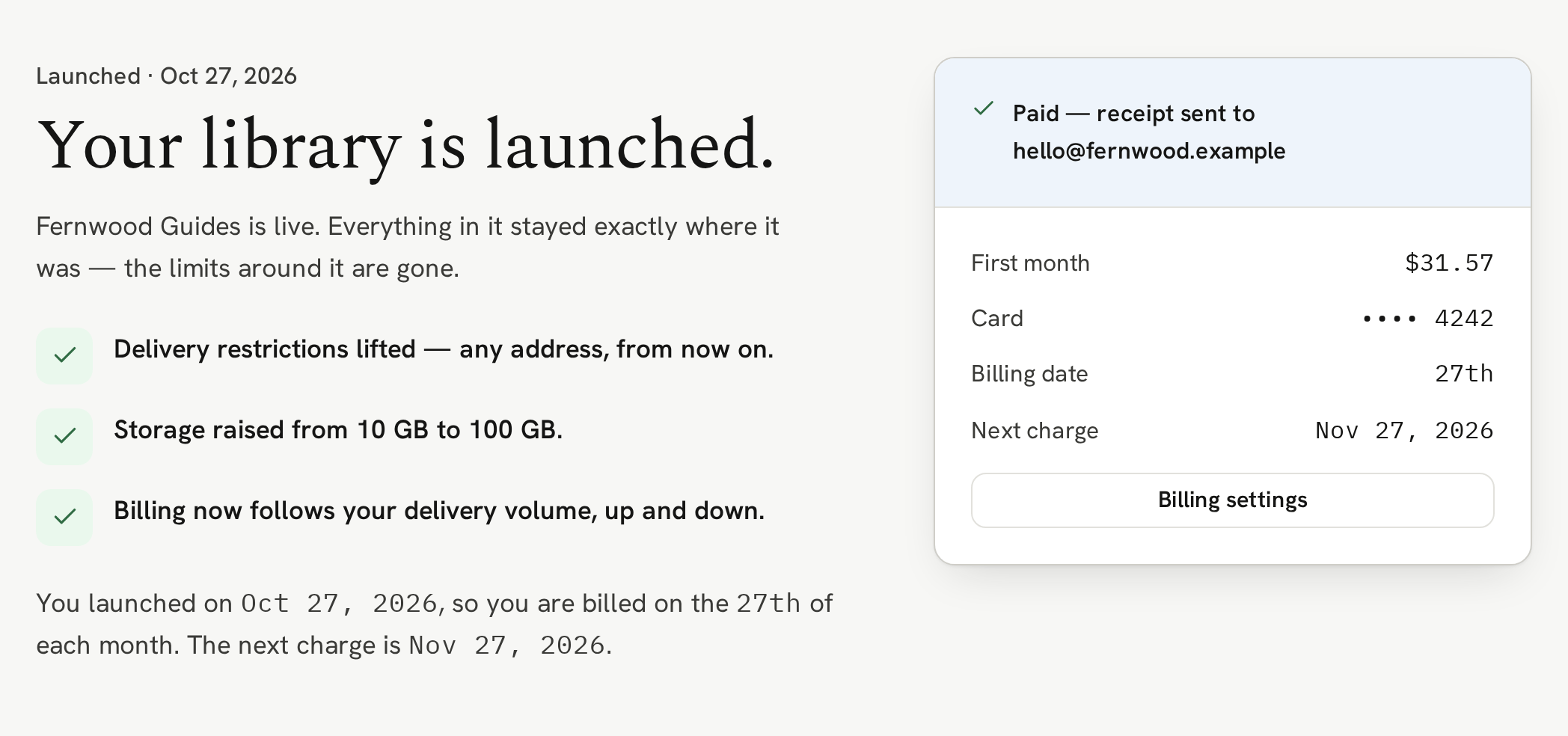
All your invoices are in Settings → Invoices.
Next
Your library is Launched. Next, see how your monthly bill works and where your invoices are.
Next → Billing and invoices