Replacing a file
When you need to replace a file you've already delivered, like a corrected worksheet, a new edition or an updated template, you replace it once and everyone who already has it gets the new version, on the download page they already have. There's nothing to resend. You choose whether we email them about it, and until the new file is checked and ready, they keep downloading the current one.
Replacing the file
Open the details from your content page and click the "Replace content with new file" button:
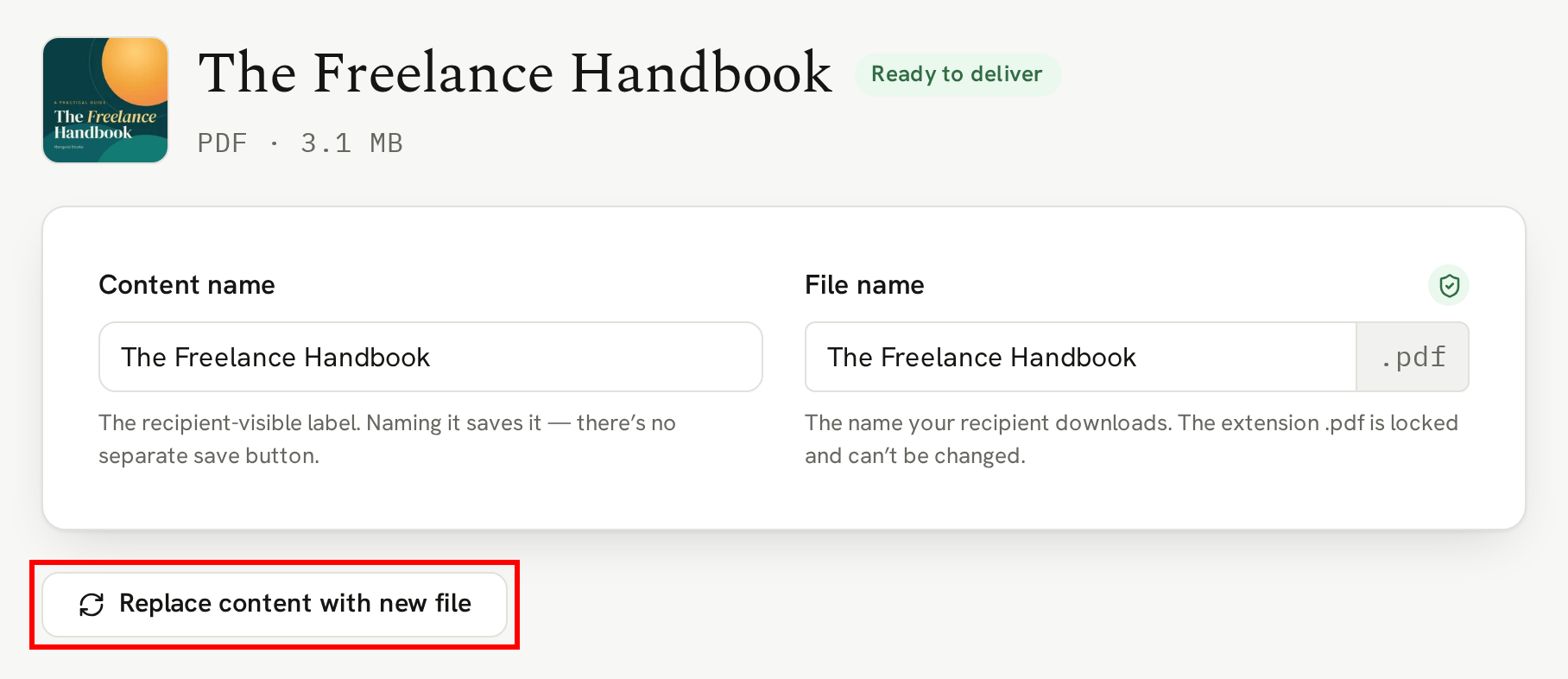
If anyone already has the file, we first ask whether to email them about the new version, and tell you how many people that is. Choose "Yes, let them know" or "No, don't email". Either way, they get the new file.
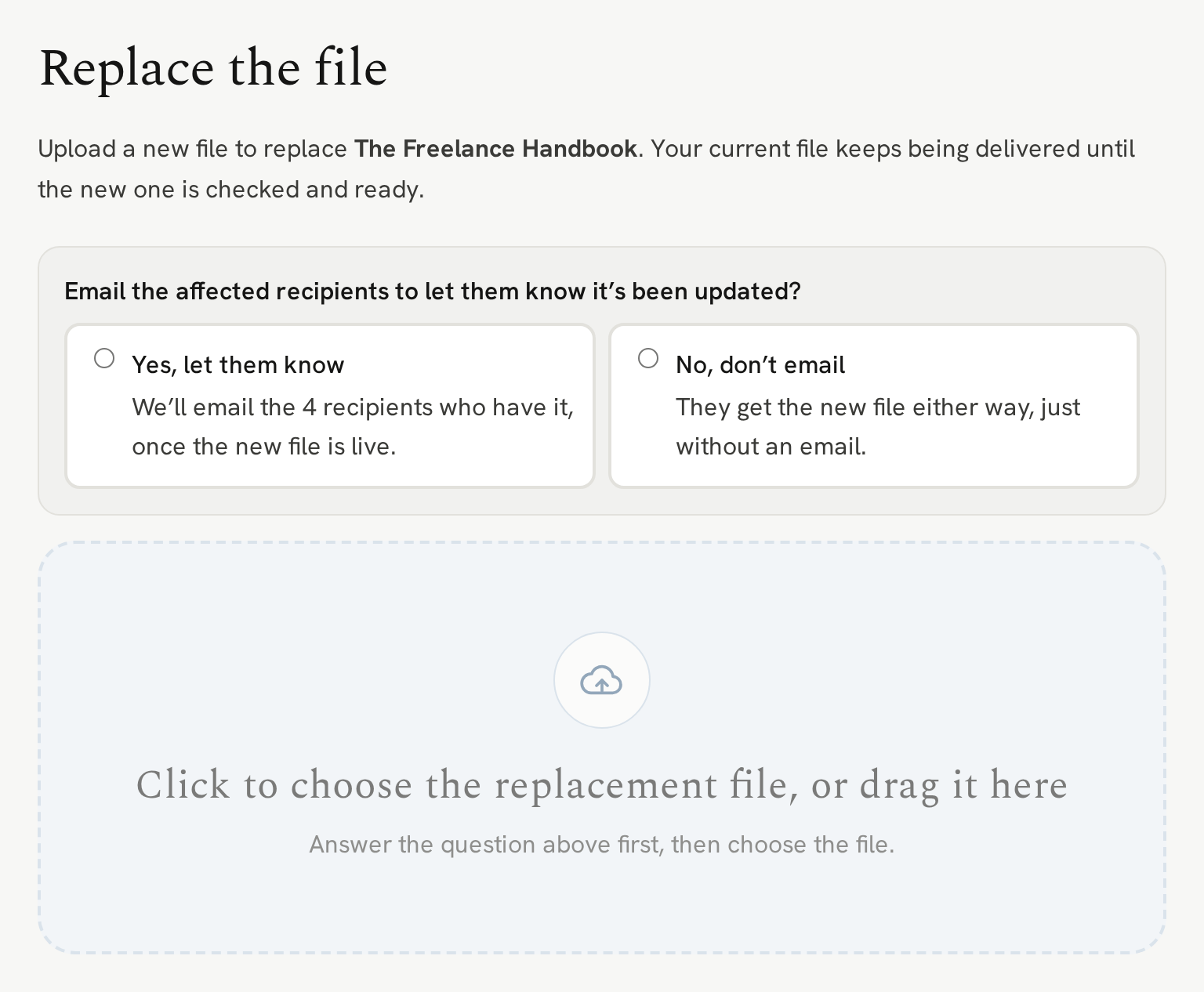
Then click the upload box to choose the new file, or drag it in. Once it's uploaded and checked, you're back on the content's page, with a message confirming the file was replaced.
While we check it
Your recipients keep downloading the current file while the new one uploads and is checked. If the new file has location data, we ask what you'd like to do with it before it goes live, and the current file keeps being delivered until you've decided. See Why Veluril checks location safety in your photos.
If you change your mind at that point, "Keep current file, discard replacement" leaves everything as it was.
When it's live
Anyone who already received a delivery with that content can access the new version on their download page.
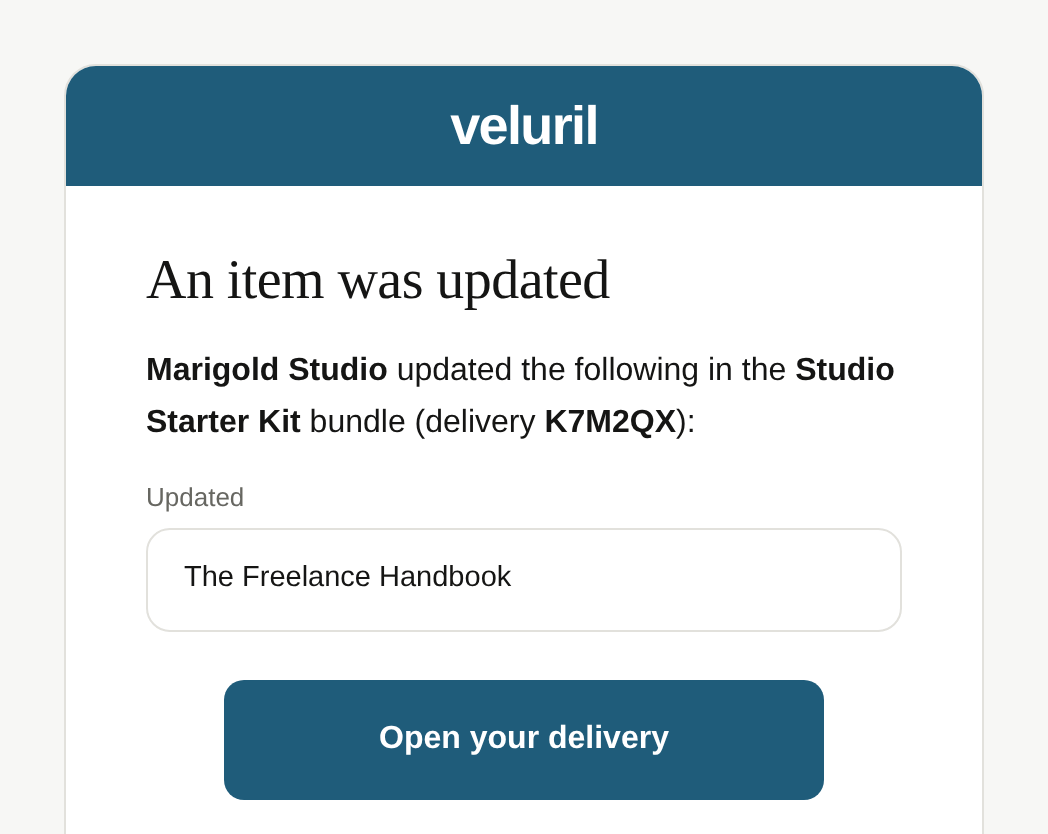
If you chose to email them, they'll get a notification naming the file and the bundle it's in, along with a link to their download page.
Their downloads
Replacing a file doesn't change download limits or timed access, so if the recipient already used all their download attempts, you may need to reset them so they can download the new file. See If a recipient can't download a file.
Next
Once your recipients have the new version, you can see when each of them downloads it.
Next → Checking on your deliveries