How the recipient confirms it's them
Until the recipient downloads their first file, their download page opens straight from the link. This gives a smooth experience on completion of, say, a purchase of a Square Trigger product. After that first download, they confirm it's them with a 6-digit code we email to the address you delivered to. Here's what they see, and how to help if a code doesn't arrive.
Asking for a code
When they come back after that first download, their download page asks them to confirm it's them. They click "Email me a code":
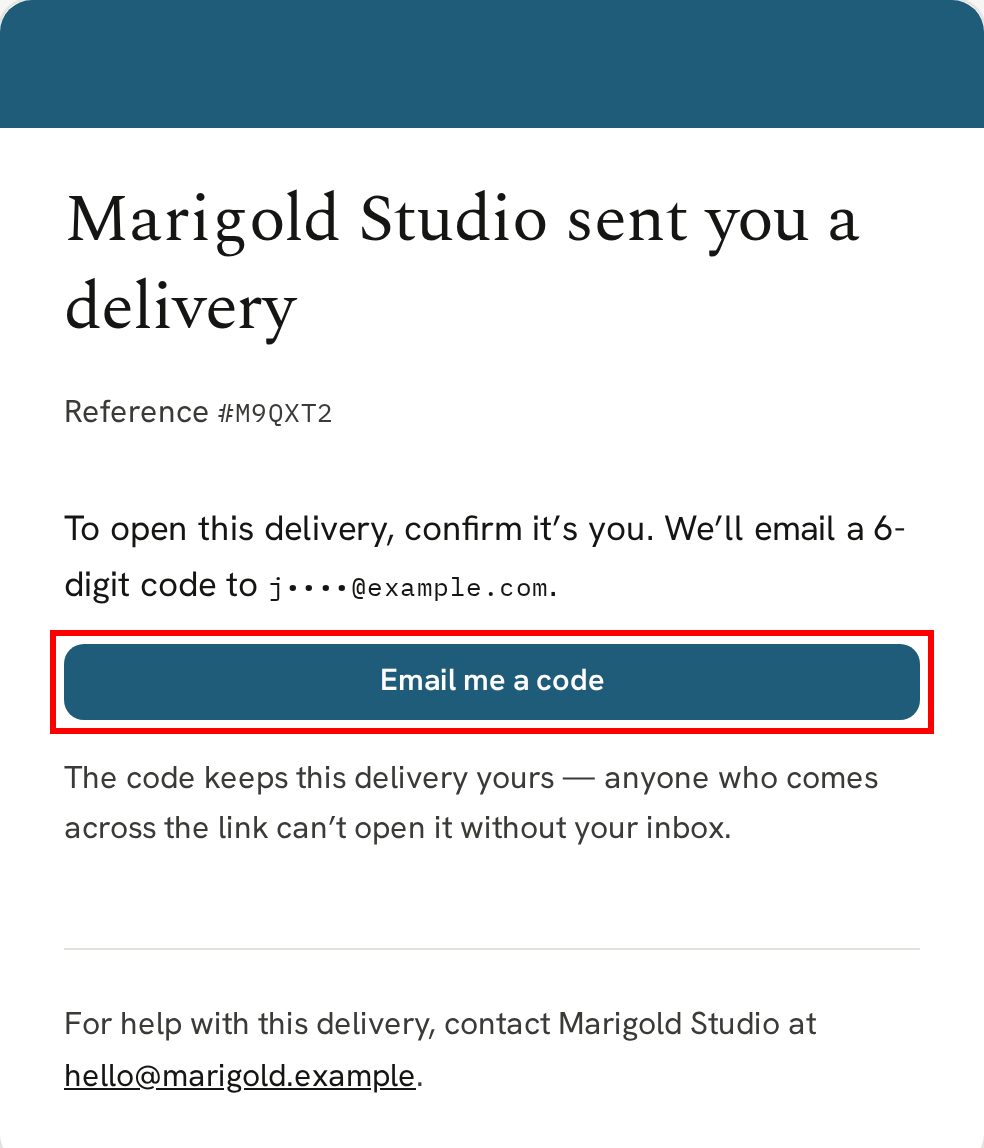
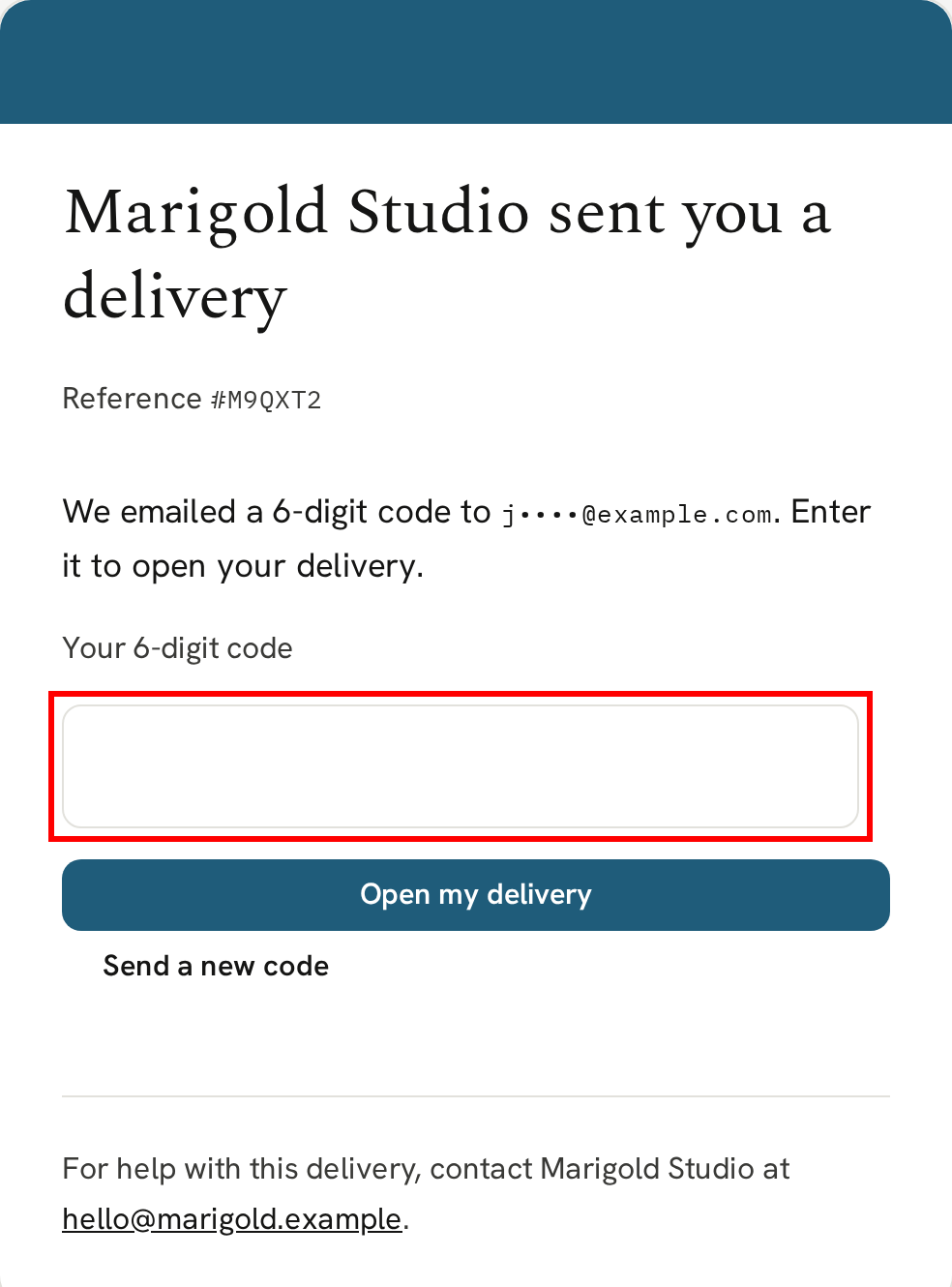
We email them the code, and they type it into the box on the page:
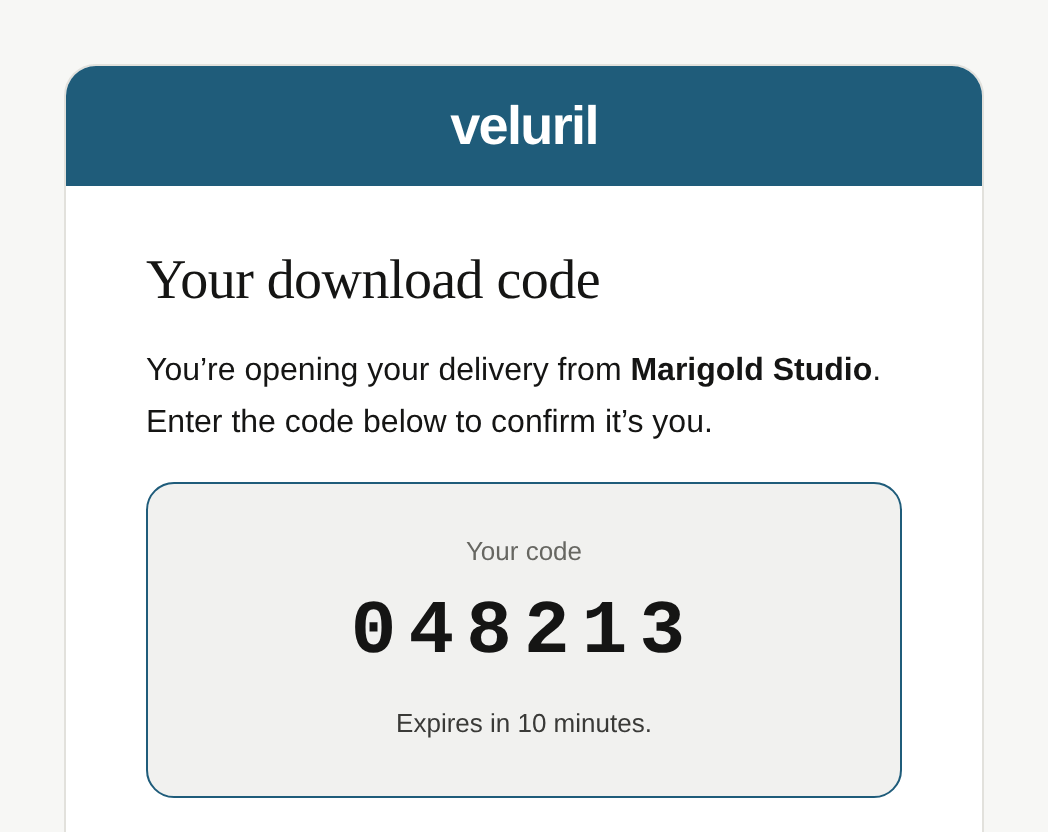
The email comes from your library name, and the code works for 10 minutes:
The code is sent to the recipient's email address, never to anyone else. So once a file has been downloaded, a shared download page URL won't open for anyone without the 6-digit code we sent to the recipient.
Remembering their browser
Once their code is accepted, we offer to remember their browser for 7 days:
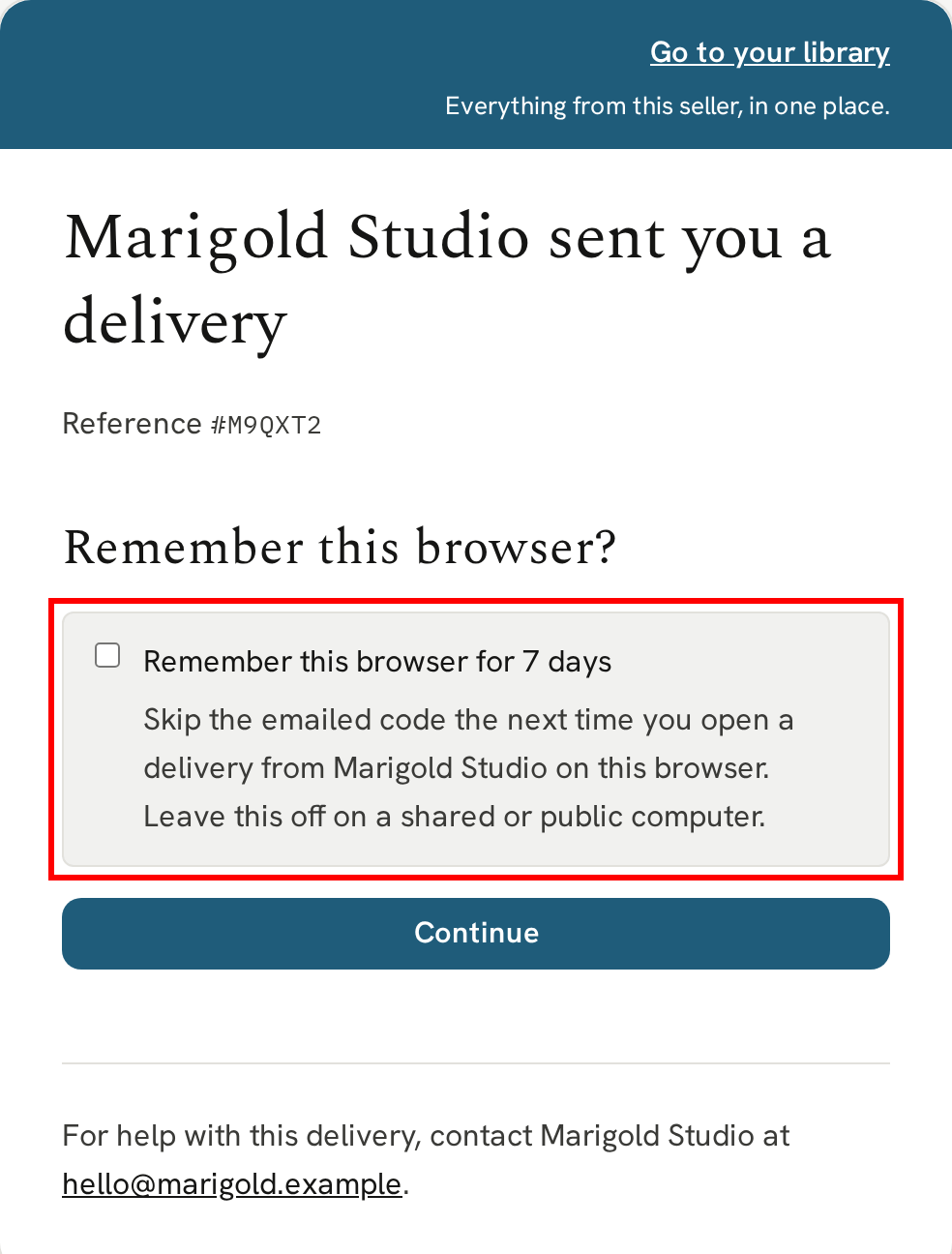
If they check the box, that browser skips the need for the 6-digit code for 7 days, for every delivery from you.
If the code doesn't arrive
Emails can take a minute or two to arrive, and sometimes land in a spam or junk folder, so that's the first place to look. If it still isn't there, they can click "Send a new code" on the page.
If emails to their address are being blocked, if the email bounced for example, the page won't send a code. It will tell them it can't be sent, and asks them to contact you. The delivery will be listed on your Deliveries page under "Failed — needs your attention", where you can correct the address and resend it. See Resending a delivery.
If a code has expired, or was typed wrong too many times, the page tells them, and they can ask for a new one.
If they no longer use the address you delivered to, you can correct it on the delivery and resend it. See Resending a delivery.
Turning it off
This check is Layer 1 security, and it's on by default. For something you want shared, like a free lead magnet, you can switch it off, and then the link alone opens the page. You set it on each file and bundle; see Uploading your content and Creating a bundle.
Each delivery keeps the Layer 1 setting it had when you sent it, so a change applies to the deliveries you send from then on.
Next
Once they've confirmed it's them, they can keep everything you send them in one place.
Next → The recipient's library